OSD Overview
The OSD (On-Screen Display) is a user interface that provides access to various settings and functions of the glasses.
X Button Function
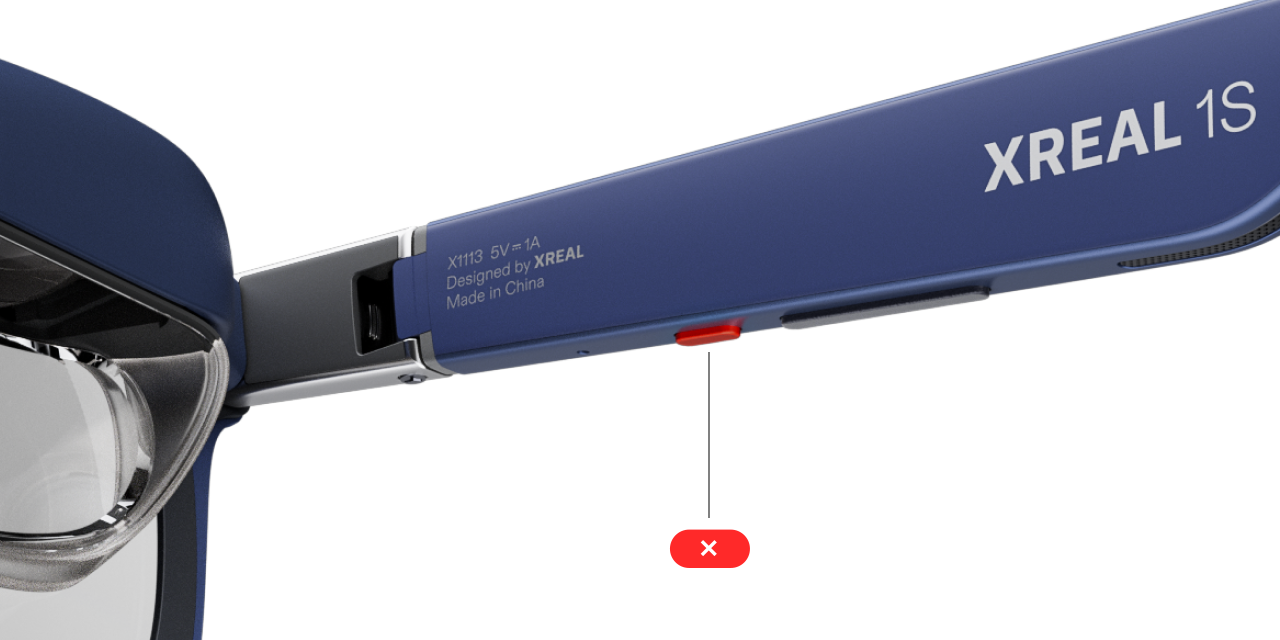
Double-click the red「X」button on the bottom of the right temple to access the OSD menu to:
- Switch between 2D / 3D modes
- Adjust screen size
- Adjust screen distance
- Select display modes
- Configure 「Quick Button」 settings
OSD Menu Interface
Main Menu Categories
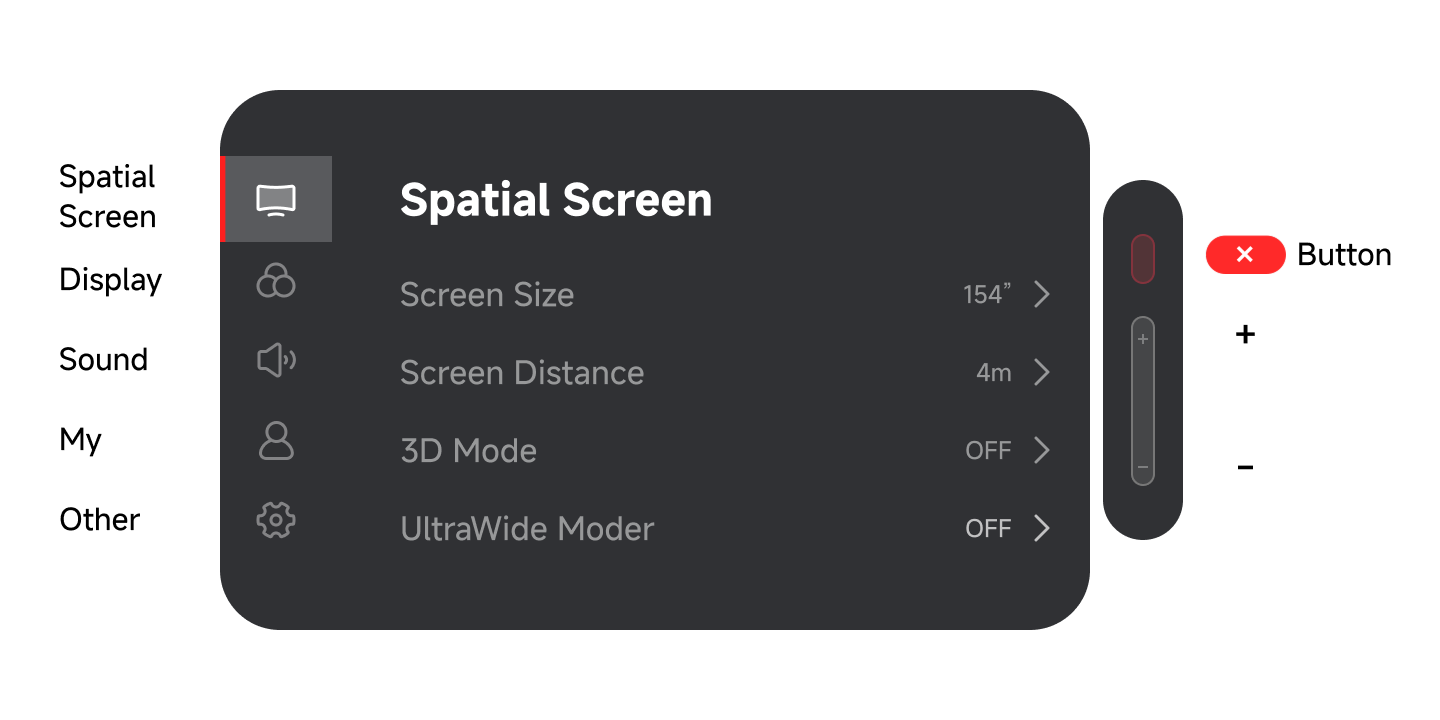
Spatial Screen
| Feature | Description |
|---|---|
| Screen Size | Adjust the screen size to suit your preference, whether you want a bigger or smaller display. |
| Screen Distance | Move the screen a little closer or farther away to find your ideal viewing comfort zone. |
| Spatial Anchor (Only available when XREAL Eye is connected) | Enabling Spatial Anchor lets you fix your screen anywhere and feel like a real TV floating exactly where you want it. |
| 3D Mode | Make the screen come alive. Recommended for shows and games, with a stronger sense of depth and immersion. |
| UltraWide Mode | Expand your field of view and see more on one screen, suitable for both entertainment and productivity. |
| Side View | Shrink the screen so it stays out of the way, letting you watch and multitask at the same time. |
| Stabilizer | Keeps the screen steady while you walk or move, so the screen stays clear and comfortable to view. |
| Auto Transparency | Automatically adjusts to changing light conditions for a more natural and clearer viewing experience. |
| Screen Leveling | Fine-tune the screen level in Anchor Mode for a more personalized viewing experience. |
| IPD Adjustment | Easily adjust interpupillary distance so the image aligns better with your eyes for clearer, more comfortable viewing. |
Display
| Feature | Description |
|---|---|
| Color Temperature | Adjust the color temperature warmer or cooler to suit your preference. |
| Text Enhancement | Having trouble reading text? It helps make text clearer and easier to read. |
| Increase Brightness | Brightness can be boosted right away, so content stays clear in both day and night conditions. |
Sound
| Feature | Description |
|---|---|
| Volume | Adjust the volume to reach a more immersive or quieter experience. |
| Audio Protocol | Switch audio protocols for stable connections and high-quality audio performance. |
My
| Feature | Description |
|---|---|
| Quick Button | Set single click, long click, or double click as your custom shortcut actions for faster and easier control. |
| XREAL Eye (Only available when XREAL Eye is connected) | Manage photos and videos captured by XREAL Eye, configure recording settings, and manage storage space. |
Other
| Feature | Description |
|---|---|
| Tutorial | Not sure how to use the controls? The tutorial walks you through them step by step for an easy start. |
| Sensor Calibration | Calibrate the sensors regularly to keep device response accurate and the experience smooth and natural. |
| Language Settings | Switch languages easily so the device works in the language you are most comfortable with. |
| Reverse Menu Direction | Flip the menu orientation for more comfortable operation, whether you use your left or right hand. |
| Regulatory Information | Includes the regulatory and certification information that the device complies with for safe and compliant use. |
| Version | View the current firmware version to keep track of device updates. |
| Serial Number | The device’s unique identifier, useful for after-sales service and device management. |
| Reset to Factory Settings | Restore the device to its factory state with one tap and reset all settings for a fresh start. |
| Auto Shutdown | No activity for a while? The device powers off automatically to save energy and extend battery life. |
| Laboratory | Set UltraWide and DP audio power-off memory, so your preferred settings are remembered even after restarting the device. |
| User Agreement | View the User Agreement to learn about product terms of use and related information. |
Button Controls
- Use the 「+ / -」buttons to navigate between menu functions
- Click the 「+ / -」button to enter the 「Quick Panel」
- Press the「X」button to confirm
- Double-click the「X」button to exit/enter the OSD menu