Display Settings Overview
In 「Display」 settings, you can personalize visual parameters to achieve a more comfortable viewing experience.
The「Display」setting offers adjustment, including 「Color Temperature」, 「Text Optimization」, and 「Increase Brightness」.
Color Temperature Adjustment
「Color Temperature」changes the overall tone of the screen.
By adjusting the color temperature, the image can appear warmer (more red) or cooler (more blue), depending on ambient lighting or personal preference.
-
Double-click the 「X」button to open the menu
-
Navigate to 「Display」 → 「Color Temperature」
-
Click 「X」button to enter adjustment interface
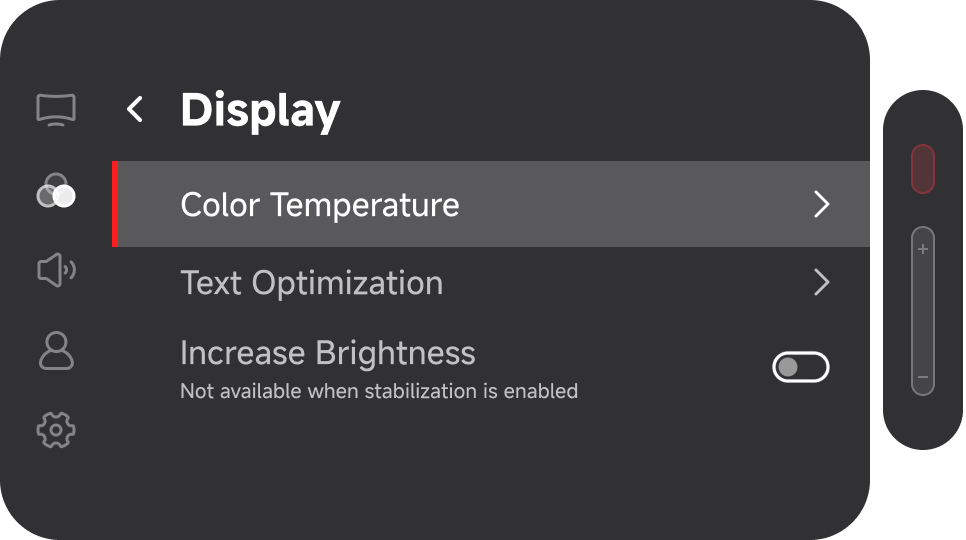
-
Use the 「+ / -」buttons to adjust:
- Left: Warmer tone
- Right: Cooler tone

Text Optimization
「Text Optimization」enhances text readability by smoothing jagged edges.
-
Double-click the 「X」button to open the menu
-
Navigate to 「Display」 → 「Text Optimization」
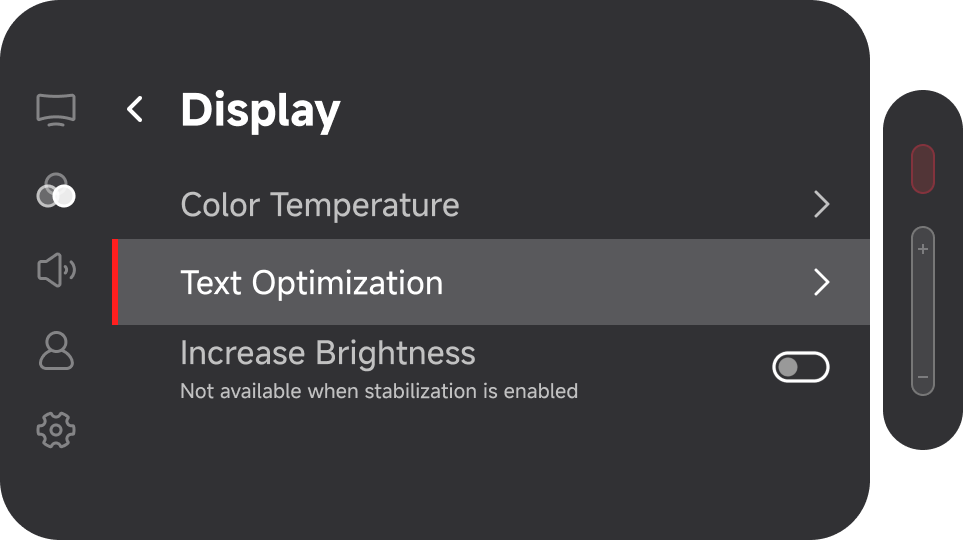
-
Click 「X」button to enter adjustment interface
-
Use the 「+ / -」buttons to adjust:
- First level on the left: No enhancement
- Last level on the right: Edge smoothing optimization to reduce text jaggedness

Increase Brightness
How to enable「Increase Brightness」
Usage Recommendations
In low-light environments, reduce brightness and adjust color temperature to a warmer tone. Proper adjustment of display settings can significantly enhance overall viewing comfort and clarity.