Stabilizer Overview
Enable 「Stabilizer」 for a steadier image during head movement; disable it for better display quality.
Enable「Stabilizer」makes the screen not only stay fixed in your desired position, but the system applies real-time algorithmic compensation to continuously recalculate screen position, reducing visible shaking caused by subtle head movements. By default, 「Stabilizer」 is enabled in「Follow」mode.
Enable「Stabilizer」
- Double click the 「X」button to open the menu
- Navigate to 「Spatial Screen」→「Stabilizer」 to enable the feature
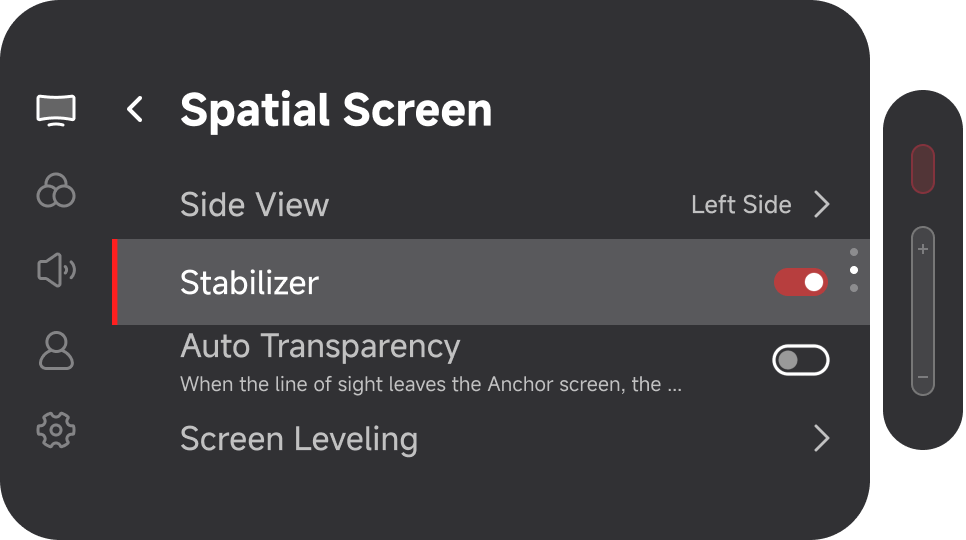
When disabled, the display behaves as if it were a direct connection, without algorithmic processing.
Benefits of Disabling「Stabilizer」
-
Turning off 「Stabilizer」 can improve perceived display quality, but screen movement will no longer be optimized by the algorithm. In some scenarios, disabling stabilization may provide a clearer and more direct viewing experience.
-
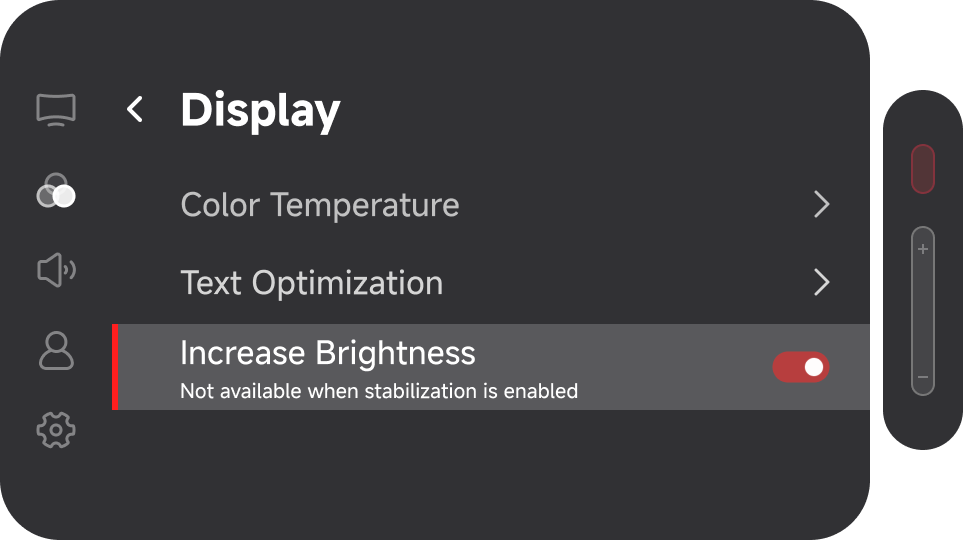
After turning off 「Stabilizer」, you can enable 「Increase Brightness」 to unlock higher brightness levels. In 「Follow」 mode, the brightness range expands from 8 levels to 12 levels. The first 8 levels remain unchanged, and the 4 additional levels provide higher brightness.
- Double-click the 「X」 button to open the menu
- Go to 「Display」 and find 「Increase Brightness」, then click the 「X」 button to enable it and exit the menu
- Click 「+/-」 to open the quick panel, where 「Brightness」 will be selected as the first icon
- Click 「+」 to adjust to a higher brightness level
Usage Tips
Due to natural visual persistence in human vision, slight motion blur or trailing effects may be perceived when 「Stabilizer」 or 「Anchor」 mode are active. To balance clarity and motion artifacts, the system applies moderate brightness limits when 「Stabilizer」 is enabled. For the best experience, we recommend using brightness level 7 (two levels below maximum brightness) in 「Anchor」 or 「Stabilization」 mode.
Please avoid suddenly increasing brightness to very high levels in dark environments, as sudden high brightness may cause eye discomfort. It is recommended to adjust the brightness gradually according to the ambient lighting conditions.