Side View Mode
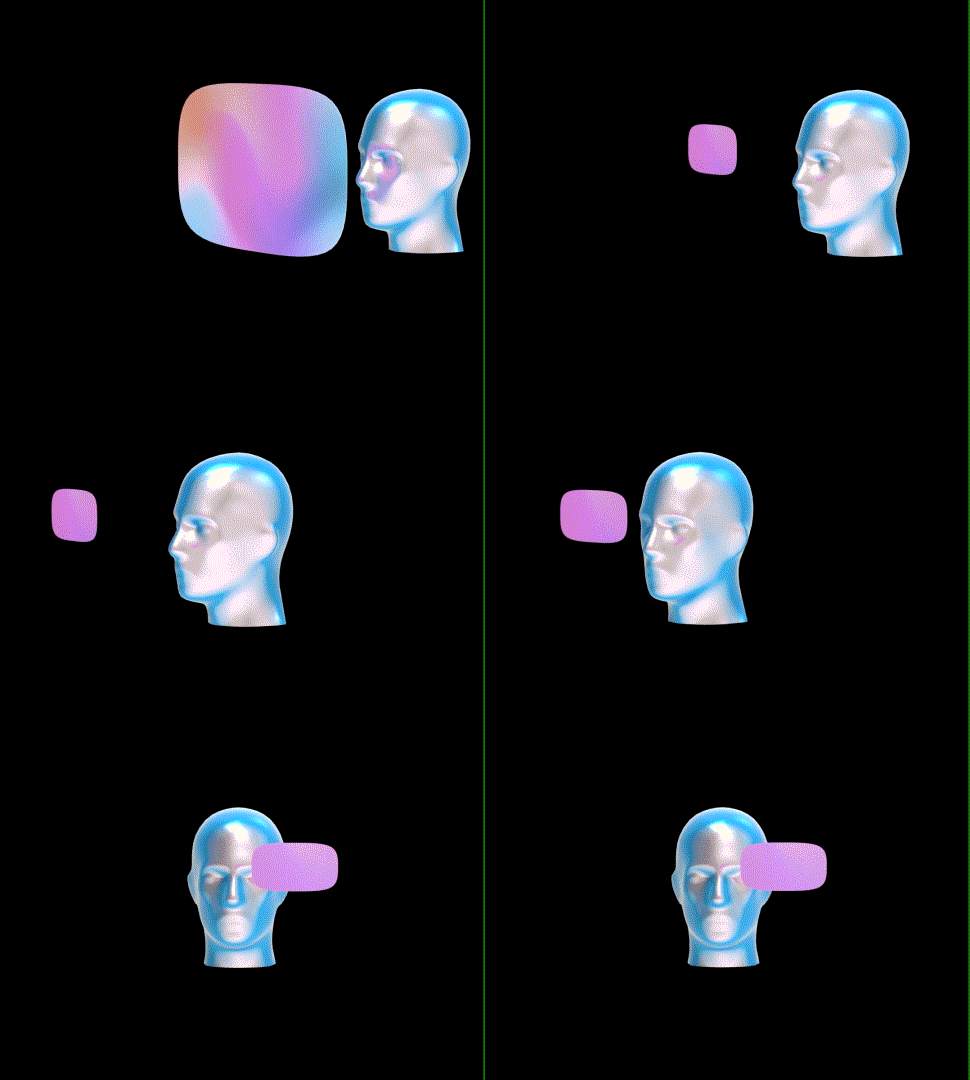
「Side View」 mode reduces the main display into a smaller floating window positioned at the top area of your view. It allows you to continue seeing your surroundings clearly while keeping the content visible, making it ideal for multitasking scenarios.
How to Enable
- Double-click the「X」button to open the menu
- Navigate to 「Display」and select 「Side View」
- Choose 「Left Side」 or 「Right Side」to enable the corresponding side view mode. Selecting 「Left Side」 positions will place the screen in the top-left corner, while selecting 「Right Side」 positions will place the screen in the top-right corner.
The window will appear in the selected corner without blocking your central vision.
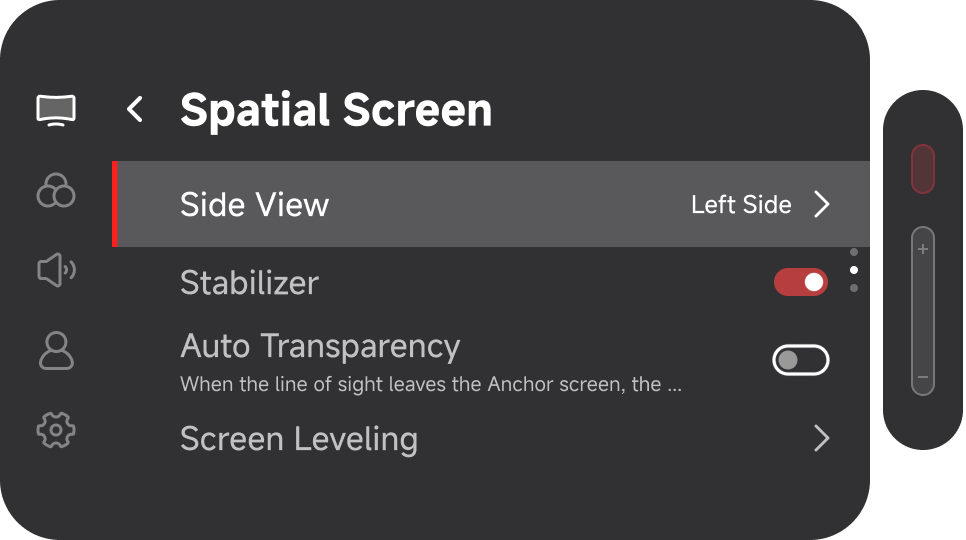
After enabling, 「Side View」 mode will be added to the 「X」button display mode cycle.
Adjusting 「Screen Size」 in 「Side View」
- After enabling 「Side View」, double-click the red 「X」 button to open the menu and select 「Spatial Screen」.
- Under 「Spatial Screen」, click the 「X」 button to enter the 「Screen Size」 adjustment page.
- Click 「+/-」 to adjust the screen size to your preference from 54 inches to 85 inches.
- For more precise adjustment, press and hold 「+/-」. Each adjustment changes the screen size by 1 inch.
Usage Scenarios
「Side View」 mode is recommended for:
- Walking while viewing navigation
- Monitoring content while working
- Light multitasking
- Viewing messages while remaining aware of surroundings