What Should I Do If the Glasses Screen Is Black?
DP output is not supported by all devices by default, and compatibility with DP video output may vary across different manufacturers and models.
If the glasses fail to display an image, first try unplugging and reconnecting the cable. If the issue persists after multiple attempts, please follow the troubleshooting steps below.
1. Does the XREAL Logo Appear?

If the XREAL Logo does not appear, please check:
- Whether the glasses are firmly connected to the device
- Whether you are using the official data cable
- Whether the XREAL Logo appears when connected to another device that supports DP output (such as Steam Deck, ROG handheld, Mac, or a compatible smartphone)
If the logo still does not appear after multiple reconnections, please contact official customer support for assistance.
2. Does a DP Warning Message Appear?
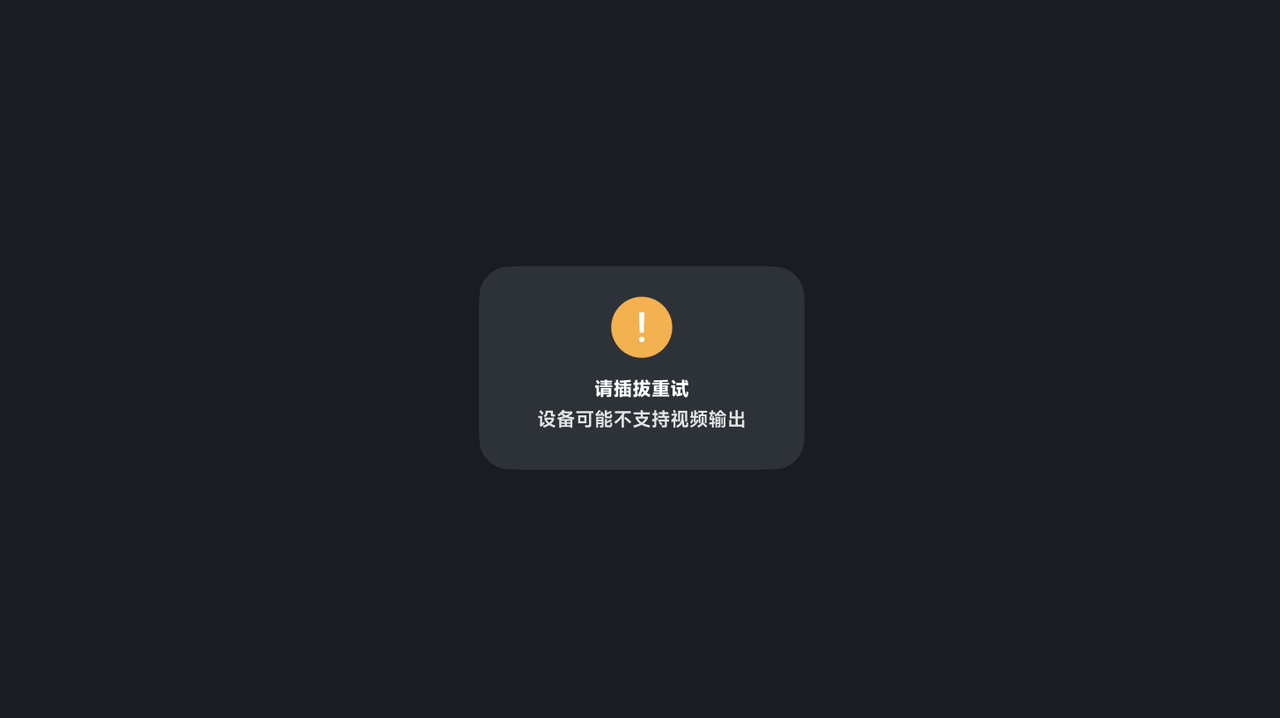
If the XREAL Logo appears but is followed by a message such as “Please reconnect” or “Device may not support video output,” this indicates that the DP signal was not successfully detected.
Please confirm:
- Whether your device supports DP video output
- Whether the warning consistently appears after reconnecting
If your device supports DP output but the issue persists, please contact your device manufacturer or XREAL customer support for further troubleshooting.
3. No Warning Message, But Still a Black Screen?
The glasses may be in「Anchor」mode, and the screen might not be positioned directly in front of your view.
Try long pressing the 「X」button to recenter the display.
4. Black Screen Only When Opening Certain Apps?
If the connection is normal but the screen turns black only when launching specific apps:
- Reconnect the device and then reopen the app
- Confirm whether the app allows external display output
Some apps are protected by DRM / HDCP content protection restrictions, which may prevent content from being displayed on external screens, resulting in a black screen.
If the issue continues, please provide your device model and the affected app name to customer support. We will respond within 24 hours.
5. Other Black Screen Situations
If none of the above conditions apply, please try reconnecting the device.
If the issue occurs repeatedly, please contact official customer support for further assistance.