Get Started with XREAL AURA
Set up your XREAL AURA in minutes.
Before You Begin
Make sure you have:
- All package contents present and undamaged
- A Wi-Fi network for initial setup
- A Google account (required to activate the device)
- A PD/PPS compatible charger (not included), 18W or higher recommended
Tip: Charge the Compute Puck before first use, or use it while charging. Connect it to power and wait until the LED indicates sufficient charge.
Step 1: Charge the Compute Puck
Before first use, charge the Compute Puck.
-
Locate the Charging Cable (USB-C) from the package.
-
Connect it to the Charging Port on the Compute Puck.
-
Connect the other end to a PD/PPS charger.
-
Wait for the LED to indicate charging.
Learn more: Power & Charging
Step 2: Connect Glasses to Compute Puck
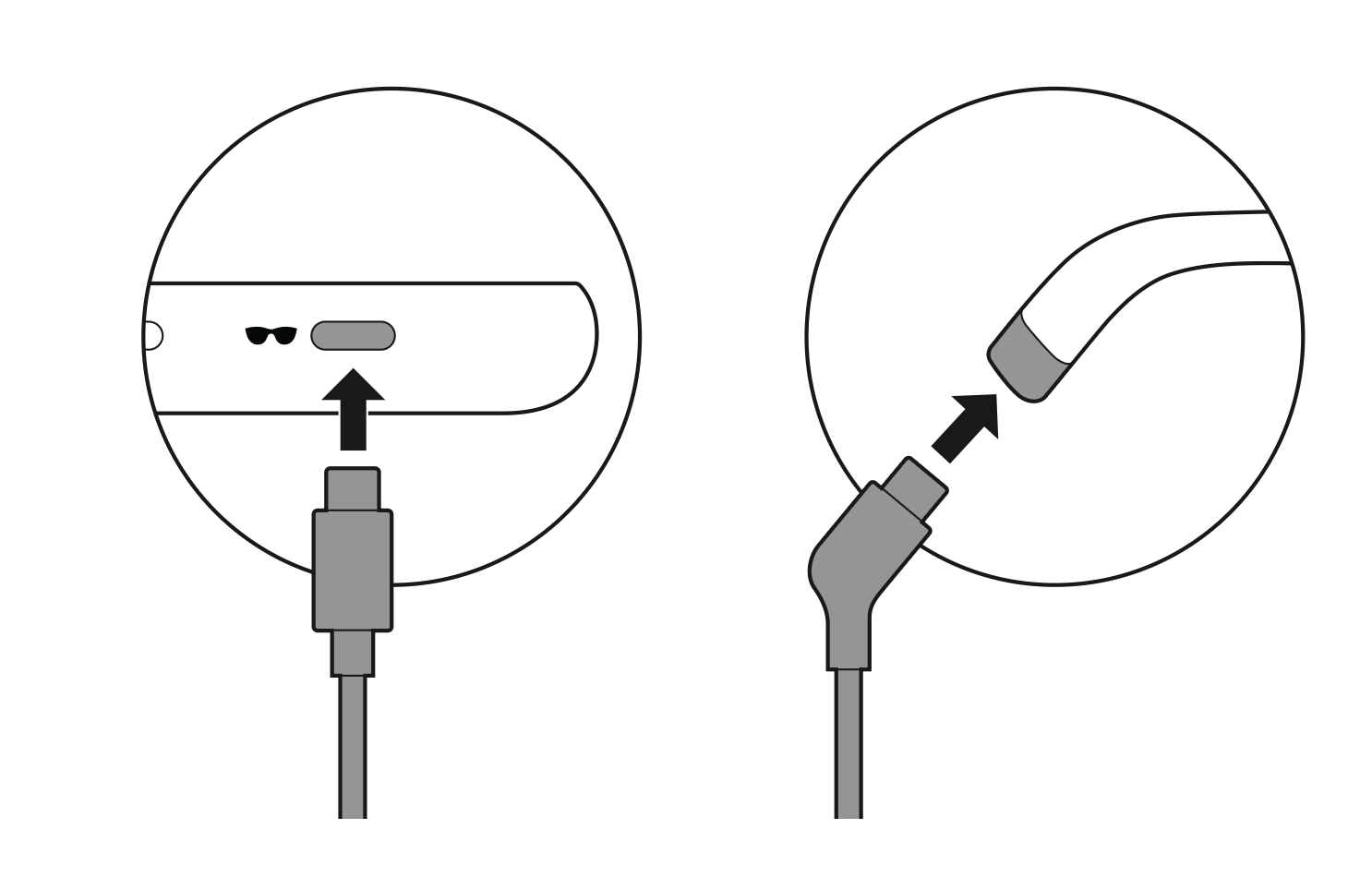
The glasses connect to the Compute Puck for Android XR mode.
- Locate the glasses cable. Identify the end with the angled connector.
- Connect to glasses. Insert the angled connector into the USB-C port at the back tip of the left temple. The angled design allows comfortable use while wearing the glasses or lying down.
- Connect to Compute Puck. Insert the straight connector into the Glasses Port on the Compute Puck.
Warning: Always use the included glasses cable. Third-party cables can cause display artifacts, tracking issues, camera malfunctions, or poor performance.
Step 3: Power On
Note: The device will not automatically turn on when the glasses are connected; you must manually power it on.
- Press and hold the Power Button for 2 seconds on the Compute Puck until you feel a vibration. The LED indicator blinks white rapidly. Put on the glasses and wait a moment to see the XREAL logo and startup prompts.
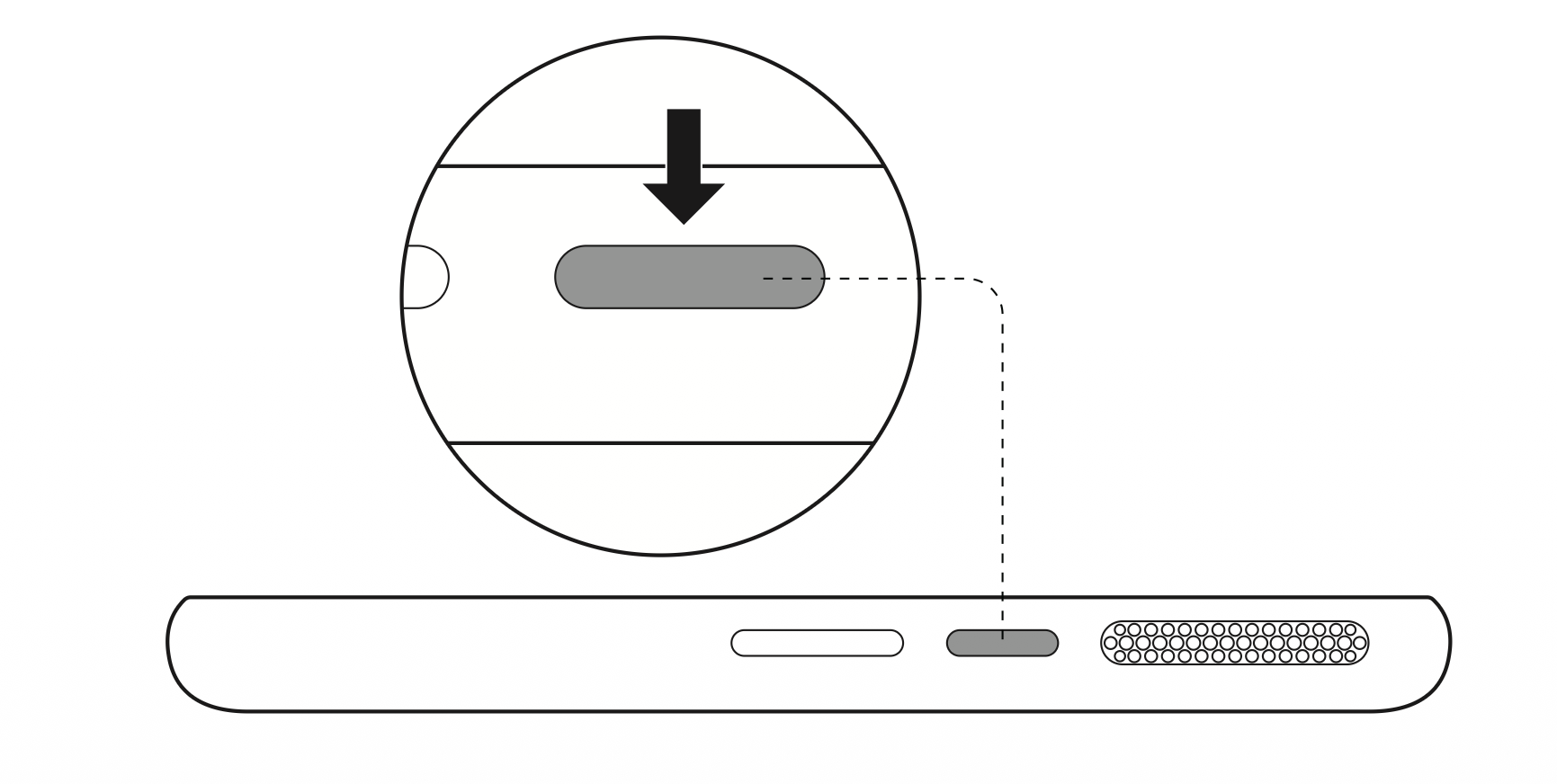
Not turning on? Check that the Compute Puck has sufficient charge. See Frequently Asked Questions (FAQ).
Step 4: Put On the Glasses
Follow these steps to put on the glasses and align the display correctly:
- Remove any protective film from the lenses.
- Install your prepared prescription lenses first if you require vision correction (see Prescription Lenses Guide).
- Put the glasses on like regular eyeglasses.
- Adjust so the display is centered in your vision.
If you experience severe ghosting, blurry edges, or eye strain, take off the glasses immediately and adjust the fit. See Fit & Comfort to change nose pads or adjust temple angles.
Important: First-time users should limit the initial session to under 30 minutes. If you feel dizzy or nauseous, stop using the device and take a break. Do not try to push through discomfort.
Step 5: Complete Android XR Setup
Once you put on the glasses, the Android XR initial setup wizard will launch automatically.
The wizard will guide you through connecting to Wi-Fi, signing in with your Google account, and learning essential hand tracking gestures and system interactions. We recommend completing the full guided tutorial to familiarize yourself with spatial computing.
Step 6: Adjust for Comfort
During initial setup, follow the software guidance to adjust your fit and take a few minutes to adjust the glasses for a comfortable fit:
Choose the Right Nose Pad
Try the included nose pads (S/M/L) to find the best fit:
- S — Screen appears lower in your view (pre-installed)
- M — Standard
- L — Screen appears higher in your view
Adjust the Temple Angle
If the display doesn't align well with your eyes, adjust the temple angle. Three positions are available: -3.5°, 0°, +3.5°.
Verify IPD Match
Ensure you have the correct size for your interpupillary distance:
- M: 60–66mm
- L: 66–72mm
Check the marking on your temple. If the edges of the display look blurry or cut off, you may have the wrong size.
Detailed Guide: Fit Adjustment
Step 7: Secure the Compute Puck
Before walking around or engaging in extended use, firmly secure the Compute Puck. This prevents accidental drops and protects the cable ports.
Belt Clip
For detailed instructions and checks, see Securing the Compute Puck.
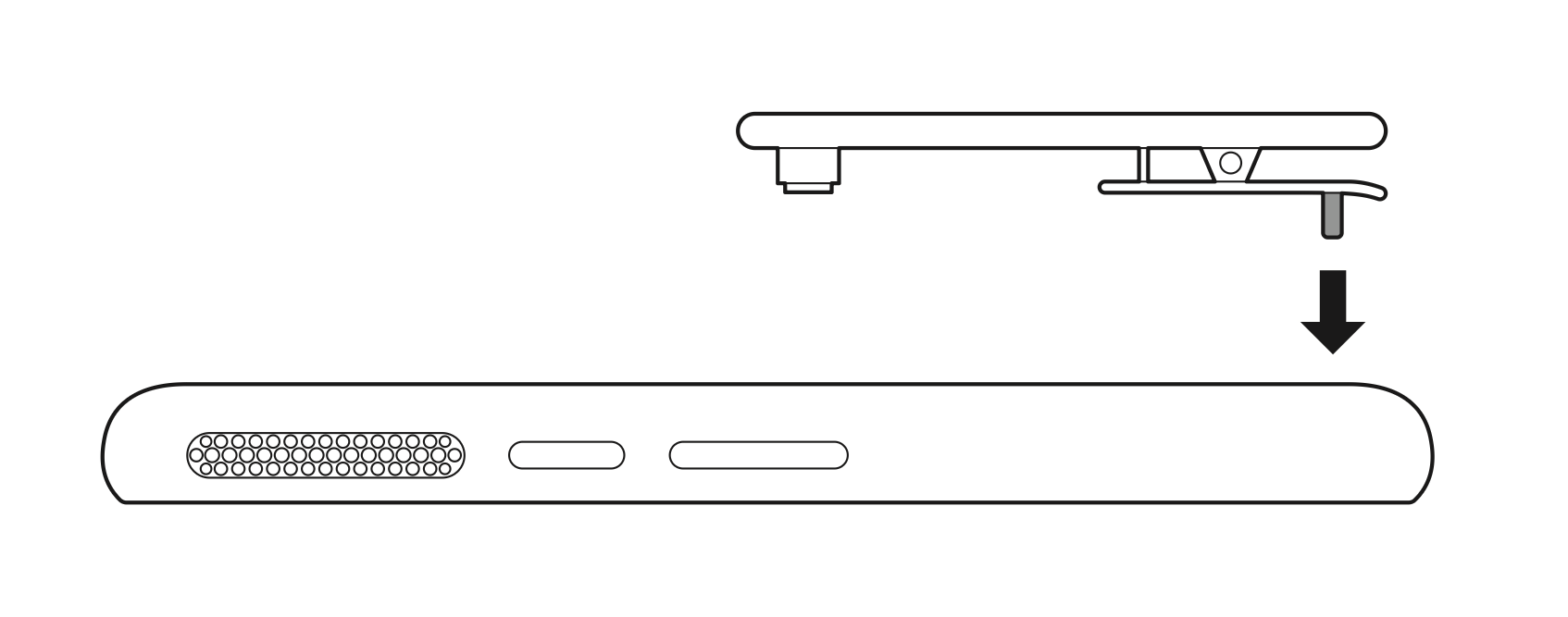
Align and slide the clip into the slot on the back of the Compute Puck. After inserting, press down firmly on the clip until it locks securely into place to prevent it from loosening or accidentally dropping during use. You can then clip it to your pocket or waistband. The Compute Puck normally hangs upside down when clipped, allowing the cable to route upward naturally.
Lanyard
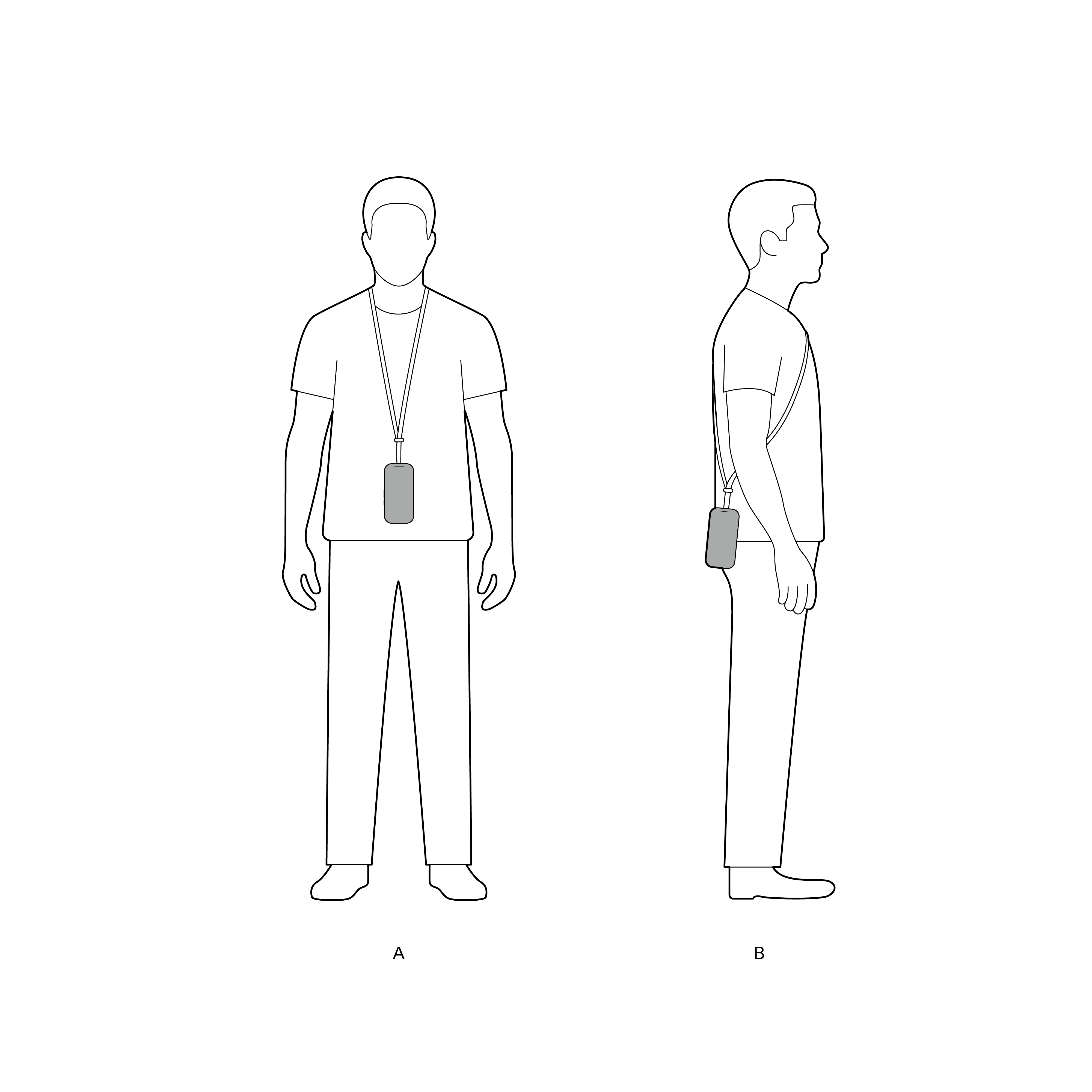
- A — Around the Neck: Wear the lanyard around your neck with the Compute Puck resting on your chest. Keep the touchpad facing outward and the top ventilation grilles unobstructed.
- B — Across the Body: Wear the lanyard diagonally across your shoulder and torso with the Compute Puck at your hip. This provides enhanced stability while walking or commuting. In both styles, ensure the glasses cable routes naturally upward with gentle slack.
You're Ready
After completing setup, you enter the Home Space. From here you can:
- Launch apps
- Experience Gemini Live
- Explore settings, such as pairing Bluetooth controllers and keyboards
- Download apps via the Google Play Store
What's Next
- Using Your XREAL AURA — Daily usage tips and scenarios
- Use as an External Display — Use glasses as a standalone display
- Android XR — Learn about the operating system and apps
Need Help
- Having trouble? Check Frequently Asked Questions (FAQ)
- For software questions, visit Google Android XR Help
- Contact XREAL Support
Next: Using Your XREAL AURA | Use as an External Display