Hardware Overview
XREAL AURA consists of XREAL AURA glasses and a Compute Puck that work together to deliver spatial computing experiences.
This architecture keeps the glasses lightweight while delivering powerful computing. The glasses are comfortable for extended wear, while the Compute Puck houses the processor, large battery, and touchpad. You can hold the Compute Puck, place it in a pocket, or clip it to your clothing.
Note: Available features and behavior may vary by software version.
XREAL AURA Glasses
The XREAL AURA glasses are a lightweight, optical see-through AR display designed to be worn like regular glasses. The magnesium alloy frame contains high-resolution Sony Micro-OLED 1200P displays, spatial tracking cameras, open-ear spatial audio speakers, and adjustable electrochromic lenses.
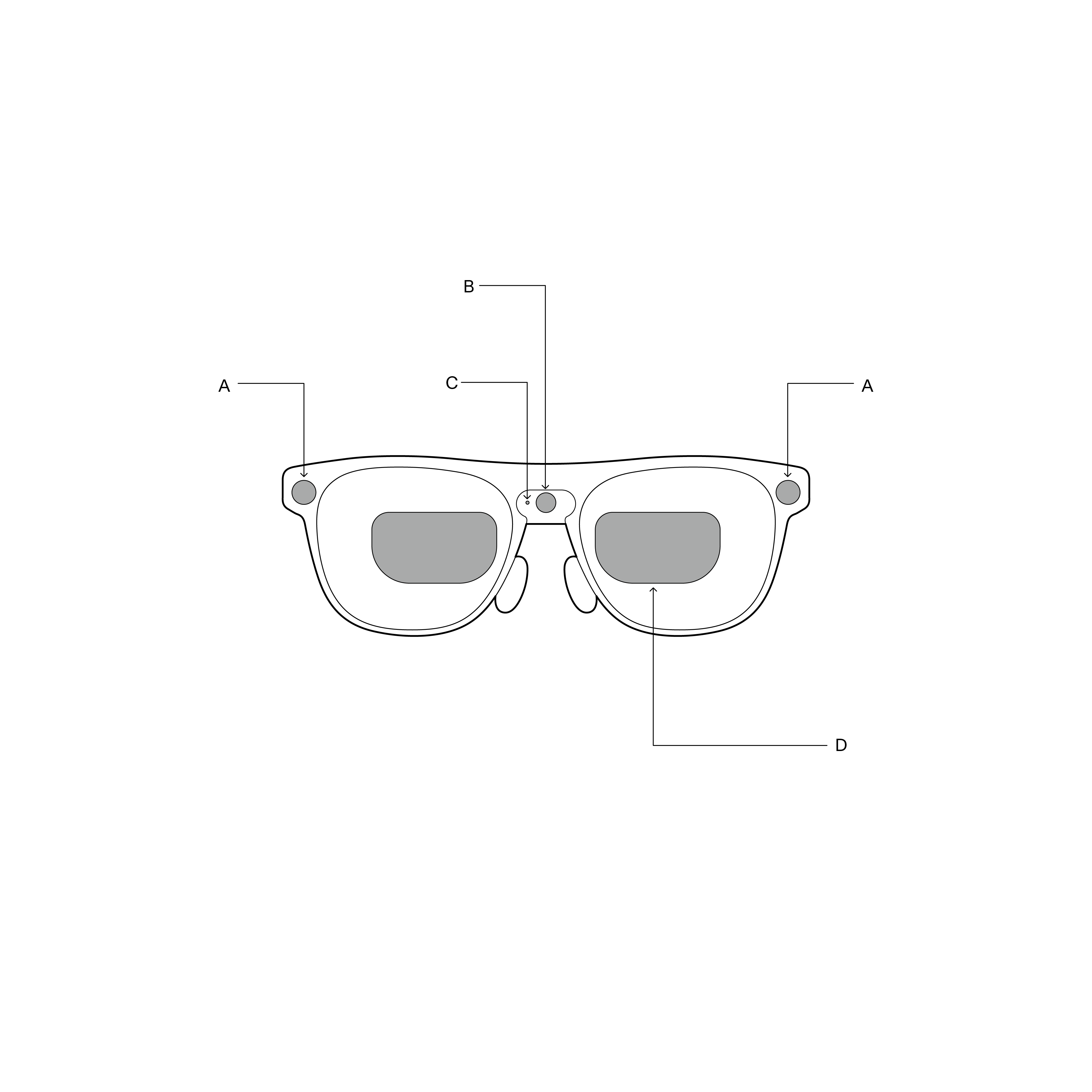
- A — World-facing Tracking Cameras: High-precision tracking cameras located on both the left and right frame hinges, used for 6DoF (six degrees of freedom) spatial anchoring and hand tracking.
- B — RGB Camera: Front-facing camera that provides visual input for Google Gemini.
- C — Privacy LED: White indicator light illuminates to show others when the camera is active or when Gemini is running.
- D — X Prism Lenses: Display panels project spatial content into your field of view while keeping the real world visible.
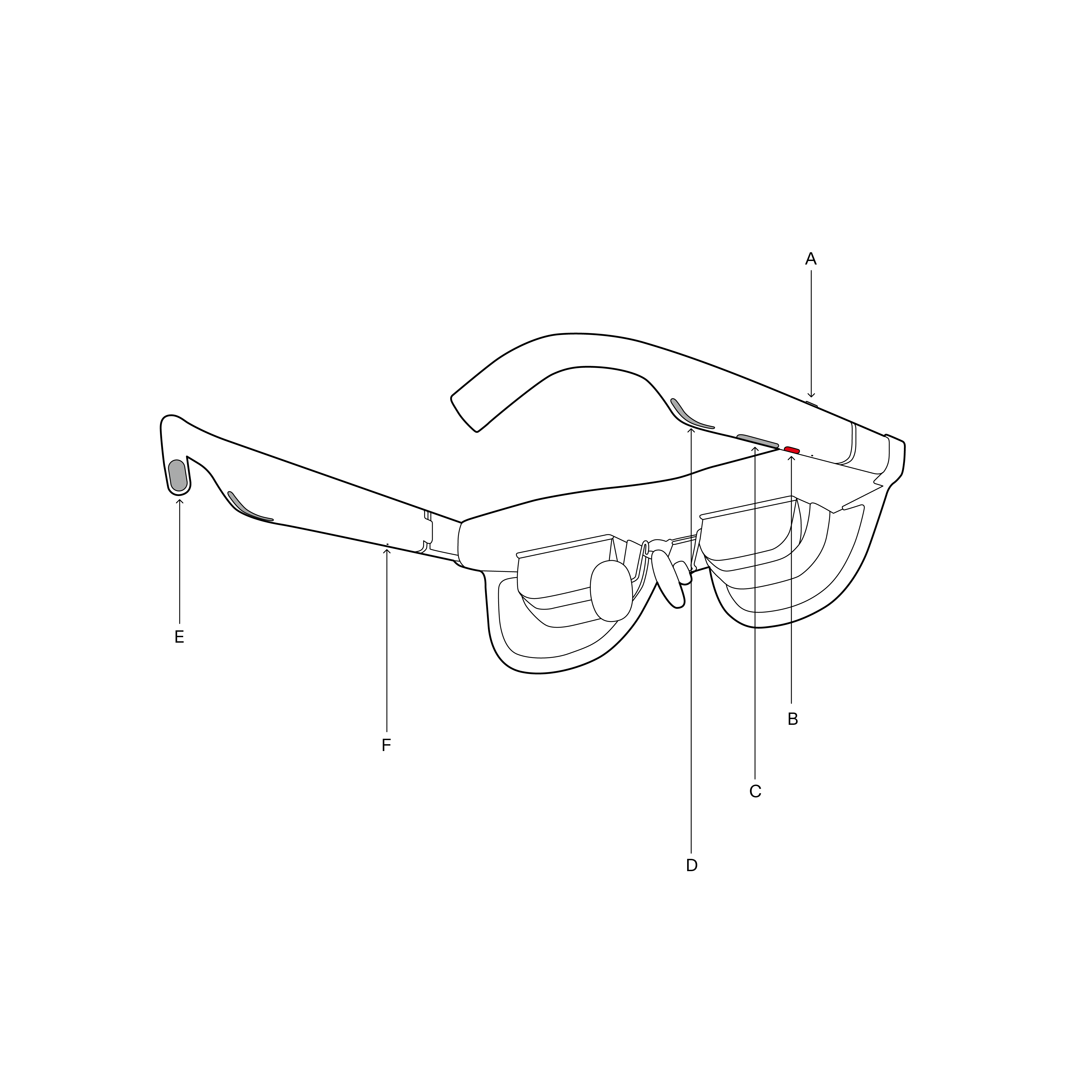
- A — Home Button: Located on top of the right temple; opens the Launcher, activates Gemini with a 0.5s hold, or opens the Camera app with a double press.
- B — X Button: Red physical button on the bottom of the right temple; cycles electrochromic dimming levels or recenters the spatial view when held.
- C — +/- Button: Located on the bottom of the right temple; adjusts system volume in XR mode or screen brightness in external display mode.
- D — Speaker (Right Temple): Open-ear acoustic outlet directing audio toward your ear.
- E — USB-C Port: Dedicated glasses cable connection port, located at the back tip of the left temple. XREAL AURA glasses do not have a built-in battery; they are powered by the Compute Puck or connected host device, automatically powering on upon connection and powering off when the cable is removed. Do not connect the glasses directly to a power outlet or power bank.
- F — Speaker (Left Temple): Open-ear acoustic outlet on the left temple.
Note: Primary physical buttons (Home, +/-, and red X button) are located on the right temple, while the dedicated USB-C glasses cable port is located at the back tip of the left temple. Physical buttons perform different functions depending on the active usage mode (Android XR Mode with the Compute Puck, or Use as an External Display connected directly to other host devices).
Display System
The glasses feature dual Sony Micro-OLED 1200P displays with a resolution of 1920 × 1200 per eye. The optical system projects a virtual screen at a comfortable viewing distance, with a 70° diagonal field of view (FOV), meaning the visible image area.
Electrochromic Dimming
The lenses have 5 levels of adjustable transparency. Press the X Button once to cycle through dimming levels:
- Level 5 (Darkest): Best for bright sunlight or watching movies with minimal light leakage.
- Level 4: Best for bright indoor environments.
- Level 3: Best for productivity, balancing virtual windows with your real surroundings.
- Level 2: Best for dim indoor environments.
- Level 1 (Most Transparent): Best for standing, talking to people, or walking around with maximum real-world awareness.
Warning: Recommended for stationary use. If you need to move, adjust lenses to Level 1 (clearest) and move only slowly within a limited area, ensuring you can always see your surroundings clearly.
Spatial Tracking
Two world-facing tracking cameras mounted on both frame hinges track your head orientation and position in space. This enables 6DoF Spatial Anchoring and Hand Tracking, allowing virtual apps and windows to stay anchored in the real world as you move.
Audio and Microphones
Open-ear spatial audio speakers are built into both temples to deliver sound directly to your ears without blocking out sounds from your surroundings.
Four integrated microphones capture your voice for calls and Gemini commands, utilizing noise reduction and beamforming to filter out background noise.
Compute Puck
The Compute Puck is the Android XR computing unit that powers your XREAL AURA. It houses the system-on-chip, memory, battery, and active cooling fan.
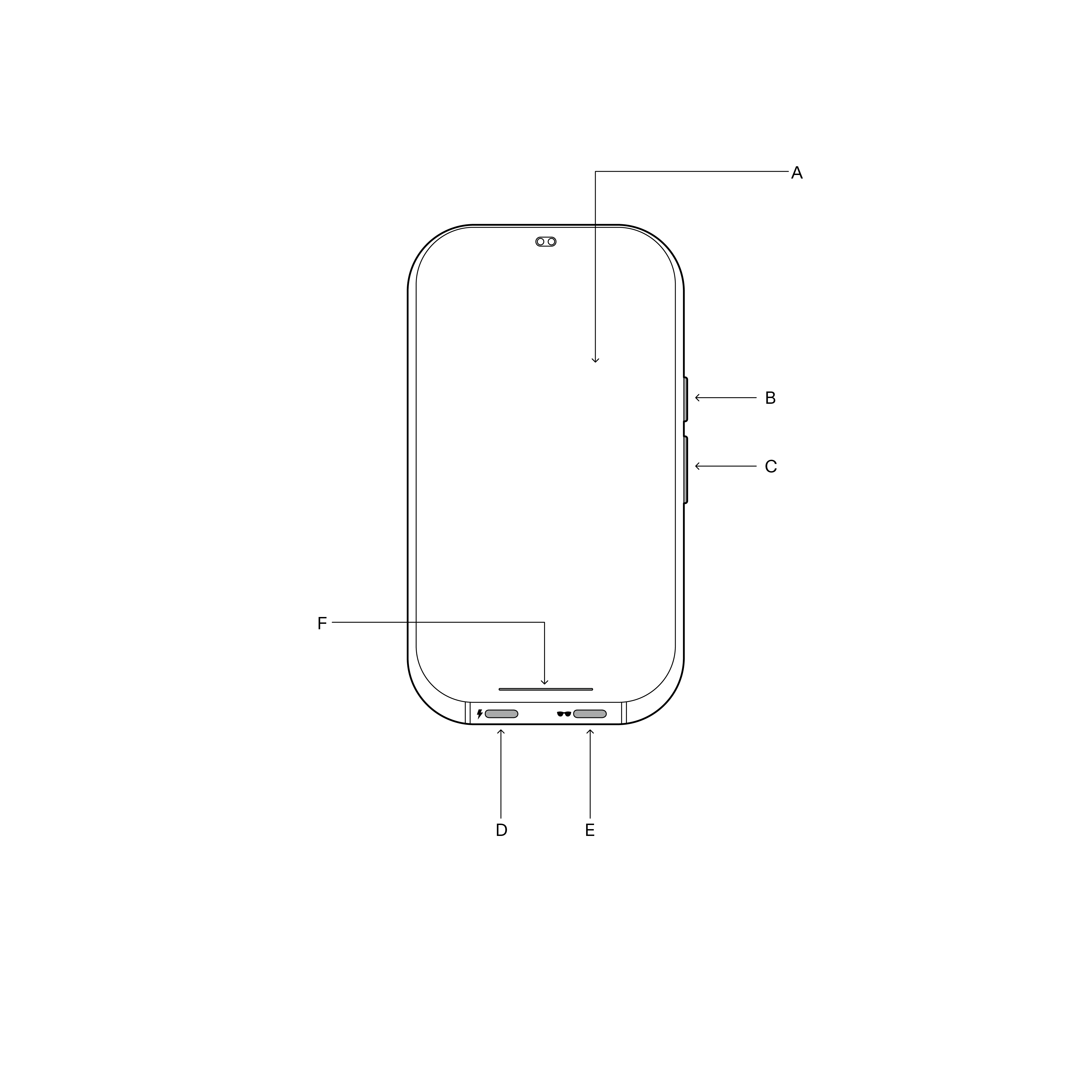
- A — Touchpad: A surface that supports multi-touch gestures for precise system navigation.
- B — Power / Fingerprint Button: Press and hold for 2 seconds to power on; press and hold for 3.5 seconds to power off; press to show/hide the app Launcher; supports fingerprint unlock. Removing or disconnecting the glasses puts the device to sleep.
- C — Volume Rocker: Side rocker to increase (+) or decrease (-) system audio volume.
- D — Charging Port (⚡): Labeled with a power icon. Connect the charging cable and a PD/PPS compatible charger (up to 57W) to this port to charge the Compute Puck. This port also accepts USB-C video input from external laptops, phones, or gaming handhelds to project their screens as virtual windows.
- E — Glasses Port (👓): Labeled with a glasses icon. Connect your XREAL AURA glasses only to this port using the straight connector of the glasses cable. This port delivers DisplayPort (DP) high-speed video/audio signals, power, and 6DoF spatial tracking USB data to the glasses. Do not plug chargers or external display sources into this port.
- F — Dynamic LED Strip: A status indicator light strip at the bottom edge of the touchpad that displays battery levels, boot status, and notifications.
Wireless Connections
- Wi-Fi: Connects to Wi-Fi 6 and Wi-Fi 6E networks (supporting 2.4GHz, 5GHz, and 6GHz bands) for setup, app downloads, and streaming.
- Bluetooth: Connect Bluetooth accessories such as headphones, keyboards, mice, and game controllers in Settings.
- Location Services: Supports GPS and Wi-Fi positioning for navigation and location-based AR applications.
Thermal Management
An active cooling fan keeps the processor running at optimal temperatures. The fan starts automatically when the Compute Puck is powered on and adjusts its speed dynamically based on system load.
Warning: Do not block the ventilation grilles on the top of the Compute Puck. Never place the Compute Puck in a tight pocket or enclosed bag while running heavy applications or fast-charging, as it may overheat. Use the included Belt Clip to attach the Compute Puck to your clothing or belt.
Operating Conditions
Make sure your device is used within the following limits:
- Operating Temperature: 0°C to 35°C (32°F to 95°F)
- Storage Temperature: -20°C to 45°C (-4°F to 113°F)
- Humidity: Up to 95% non-condensing
- Altitude: Up to 3,000m (10,000 ft)
Warning: XREAL AURA is not water resistant. Keep both the glasses and the Compute Puck away from water, rain, and other liquids.
Next: Get Started | Using Your XREAL AURA