Connect Device
ROG XREAL R1 can connect to compatible devices via a USB Type-C port. For devices that support USB-C DP Alt Mode or Thunderbolt 4, you can connect the glasses directly using the included USB-C cable. For devices that do not support USB-C video output, you can connect via the ROG Control Dock using HDMI or DisplayPort.
Before Connecting
Before connecting, check whether your host device supports video output:
| Connection Method | Applicable Devices | Requirement |
|---|---|---|
| Direct USB-C Connection | Phones, handheld gaming devices, laptops, desktop computers | The USB Type-C port must support DP Alt Mode |
| Thunderbolt Connection | Some laptops and desktop computers | The device must have a Thunderbolt 4 port |
| ROG Control Dock Connection | Desktop computers, game consoles, and some devices that do not support USB-C video output | The device must support HDMI or DisplayPort video output and connect to the Control Dock via USB for power and data transmission |
Supported Devices
| Device Category | Examples | Recommended Connection Method | Description |
|---|---|---|---|
| Handheld Gaming Devices | ROG Ally, Steam Deck, Lenovo Legion Go | Direct USB-C connection | The device's USB-C port must support DP Alt Mode |
| Mobile Devices | iPhone 15/16 series, Android phones that support DP Alt Mode | Direct USB-C connection | The phone must support video output via USB-C |
| Laptops | ROG Strix, ROG Zephyrus, MacBook Pro/Air, Windows laptops that support Thunderbolt or USB-C DP Alt Mode | Direct USB-C / Thunderbolt connection | If the device does not support USB-C video output, connect via the ROG Control Dock |
| Desktop Computers | Desktop computers with HDMI or DisplayPort output | ROG Control Dock connection | Output the video signal to the Control Dock via HDMI or DisplayPort, then connect the glasses |
| Game Consoles | PS5, Xbox Series X/S, Nintendo Switch | ROG Control Dock connection | Usually requires HDMI connection to the Control Dock |
| Nintendo Switch | Nintendo Switch | ROG Control Dock connection | When connecting a Switch, you need to project the image to the glasses via the ROG Control Dock |
Direct USB-C Connection
If your device supports USB-C DP Alt Mode or Thunderbolt 4, you can connect ROG XREAL R1 directly.
Connect to a Phone
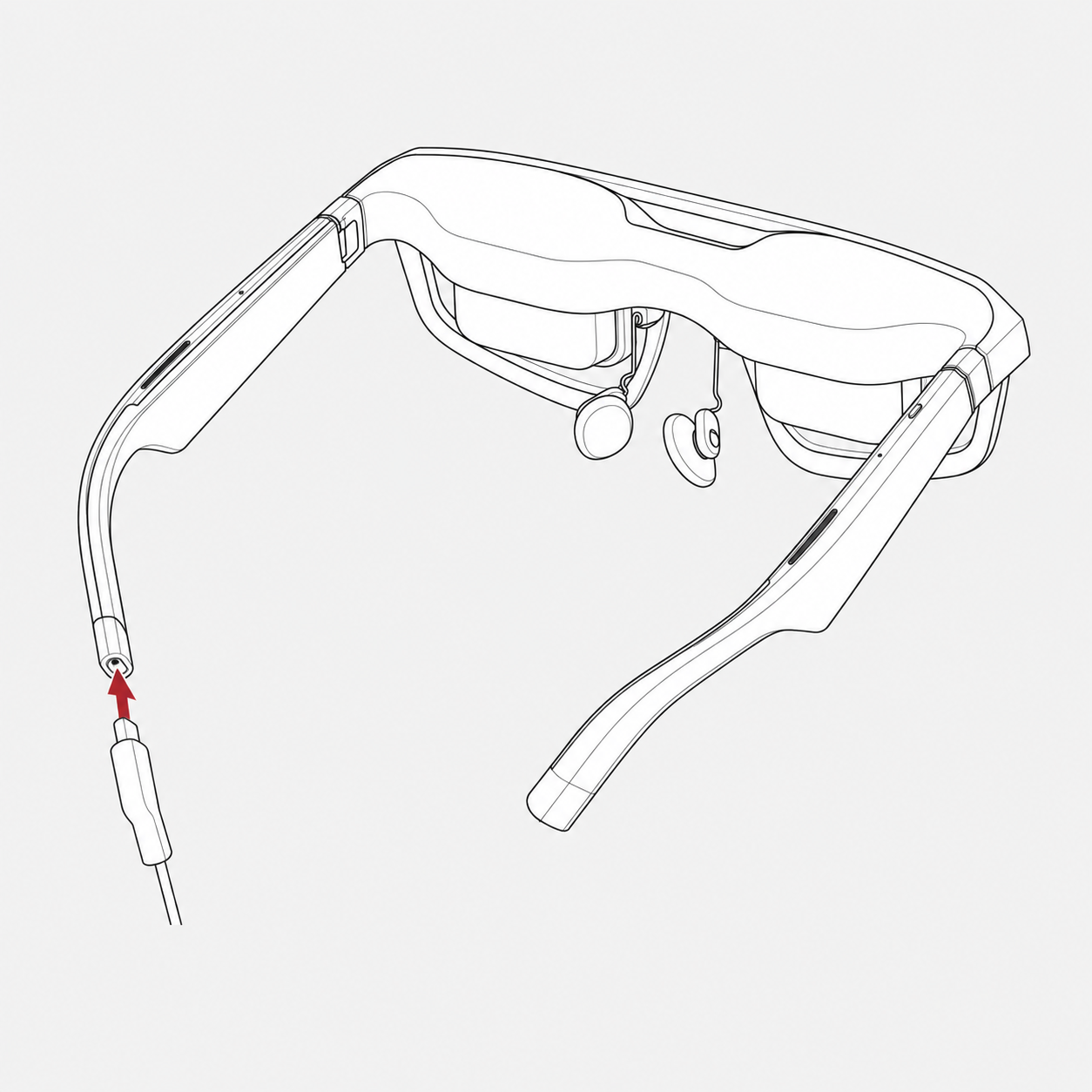
- Connect the angled end of the included USB cable to the USB Type-C port on the glasses.
- Connect the other end of the USB cable to the USB Type-C port on your phone.
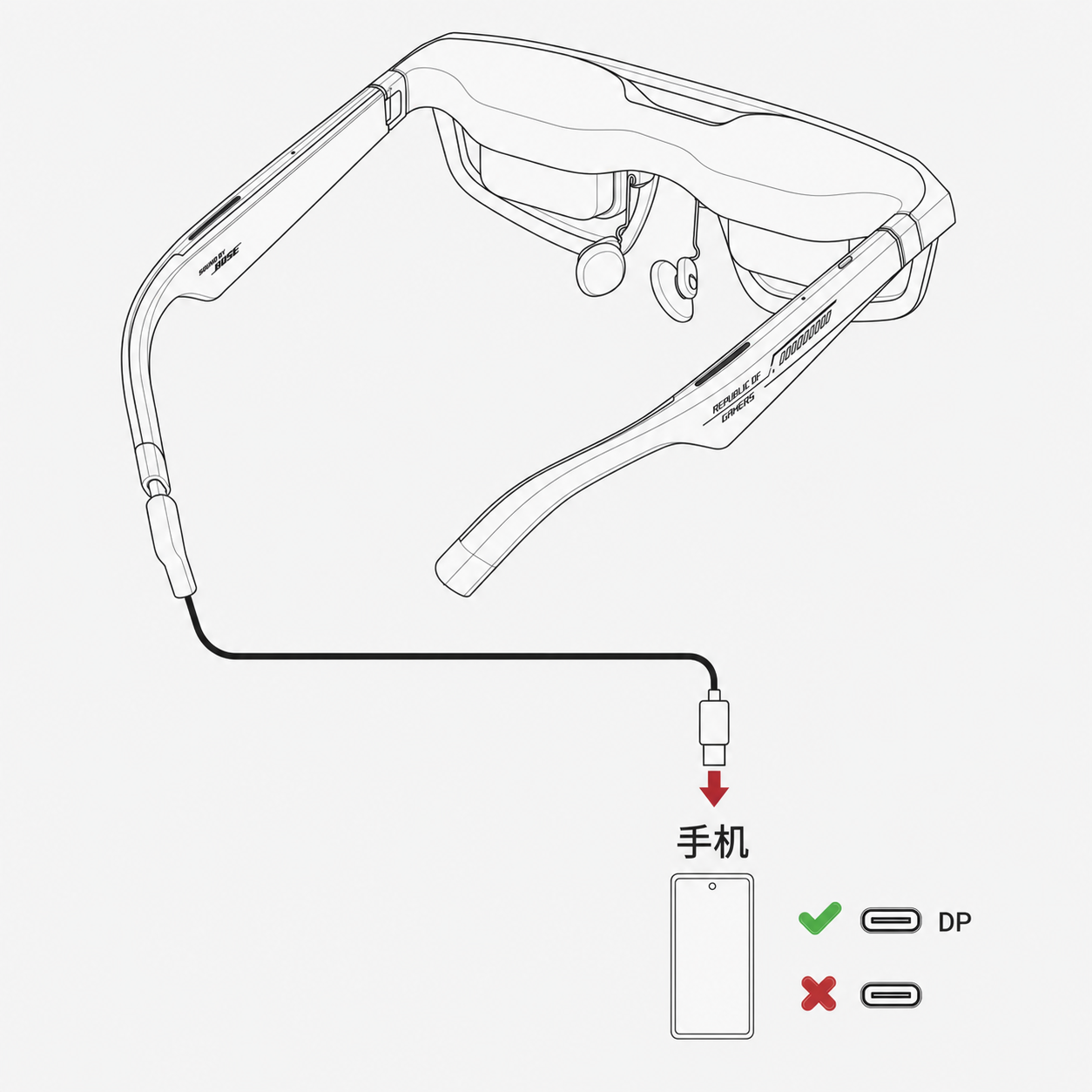
- Once connected, the glasses will automatically power on and display the phone screen.
The phone must support DP video output via the USB Type-C port. USB-C ports that only support charging or data transfer cannot directly output video.
Connect to a Laptop or Handheld Gaming Device
- Connect the angled end of the included USB cable to the USB Type-C port on the glasses.
- Connect the other end of the USB cable to the USB Type-C port on your laptop or handheld gaming device.
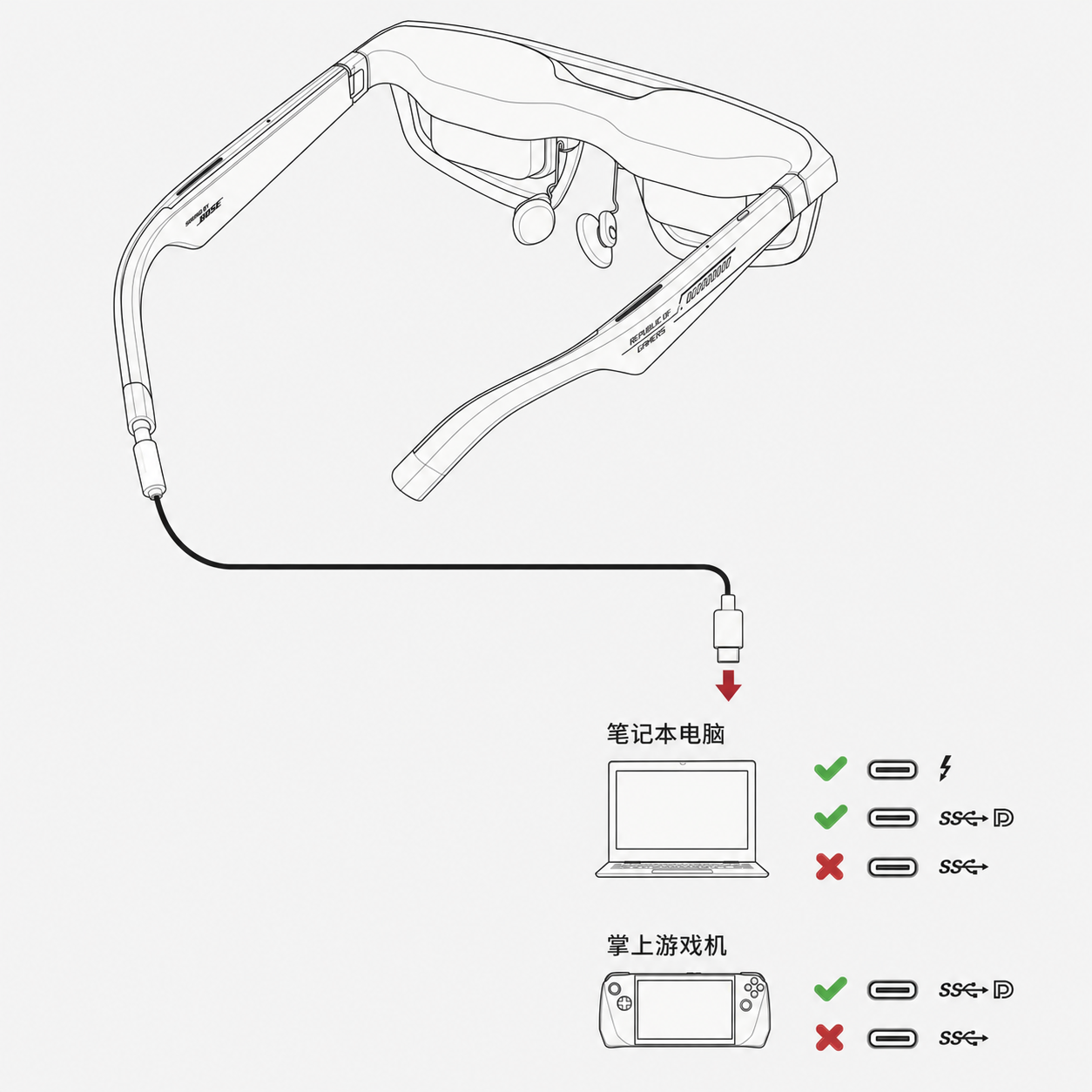
- Once connected, the glasses will automatically power on and display the host device screen.
Note: For laptops and most handheld gaming devices that support USB-C video output, the glasses can be connected directly. When connecting a Nintendo Switch, you need to project the image to the glasses via the ROG Control Dock.
Connect via the ROG Control Dock
If your host device does not support USB Type-C DP Alt Mode or Thunderbolt 4, use the included ROG Control Dock to output video to the glasses via HDMI or DisplayPort. The ROG Control Dock supports HDMI or DisplayPort video input and outputs the image to the glasses through the USB Type-C port on the front panel.
The ROG Control Dock is suitable for the following scenarios:
- The device does not have a USB-C video output port.
- The device only has HDMI or DisplayPort video output.
- You need to connect devices such as a desktop computer, PS5, Xbox, or Nintendo Switch.
- You need to connect multiple host devices and switch between different video input sources.
Connection Overview
- Use an HDMI or DisplayPort cable to connect the host device to the ROG Control Dock for video transmission.
- Use the included USB Type-A to Type-C cable to connect the host device to the ROG Control Dock for power and data transmission.
- Use another included USB Type-A to Type-C cable to connect a power source to the ROG Control Dock to ensure sufficient power supply.
- Connect the angled end of the included USB cable to the glasses.
- Connect the other end of the USB cable to the USB Type-C port on the ROG Control Dock.
::tip Note When the glasses are connected to the ROG Control Dock, operation control will automatically switch to the ROG Control Dock. :::
Connection Tips
- Devices that support USB-C DP Alt Mode can be connected directly to the glasses.
- iPhone 15/16 series and some flagship Android phones can be connected directly via USB-C, but the device must support USB-C video output.
- Laptops must support USB-C DP Alt Mode or Thunderbolt 4 to connect directly.
- For HDMI or DisplayPort devices such as desktop computers, PS5, and Xbox Series X/S, we recommend connecting via the ROG Control Dock.
- Nintendo Switch must be connected via the ROG Control Dock. It cannot project directly to the glasses like a regular handheld device that supports DP Alt Mode.
- The ROG Control Dock supports connecting up to 3 host devices at the same time: 2 via HDMI and 1 via DisplayPort. However, the glasses can only display the image from 1 device at a time.
- 240Hz refresh rate depends on the video output capability, display settings, and app content of the host device. Some gaming PCs or handheld gaming devices are more likely to support high refresh rate output, while phones, Switch, or some console devices may only support lower refresh rates.
Notes
- ROG XREAL R1 does not have a built-in battery. The glasses are powered by the connected host device or the ROG Control Dock.
- The glasses will automatically power on after connecting to the host device, and automatically power off after the USB cable is removed.
- Do not connect the glasses directly to a power outlet or power bank.
- We recommend using the included USB-C cable to connect the glasses.
- If no image is displayed after connection, check whether the host device supports USB-C DP Alt Mode, Thunderbolt 4, HDMI, or DisplayPort video output.
- If connecting via the ROG Control Dock, make sure the video cable, USB data/power cable, and external power supply are all properly connected.