Quick Guide
This guide provides a quick overview of the ROG XREAL R1 glasses' features and functions.
Get familiar with all the buttons first
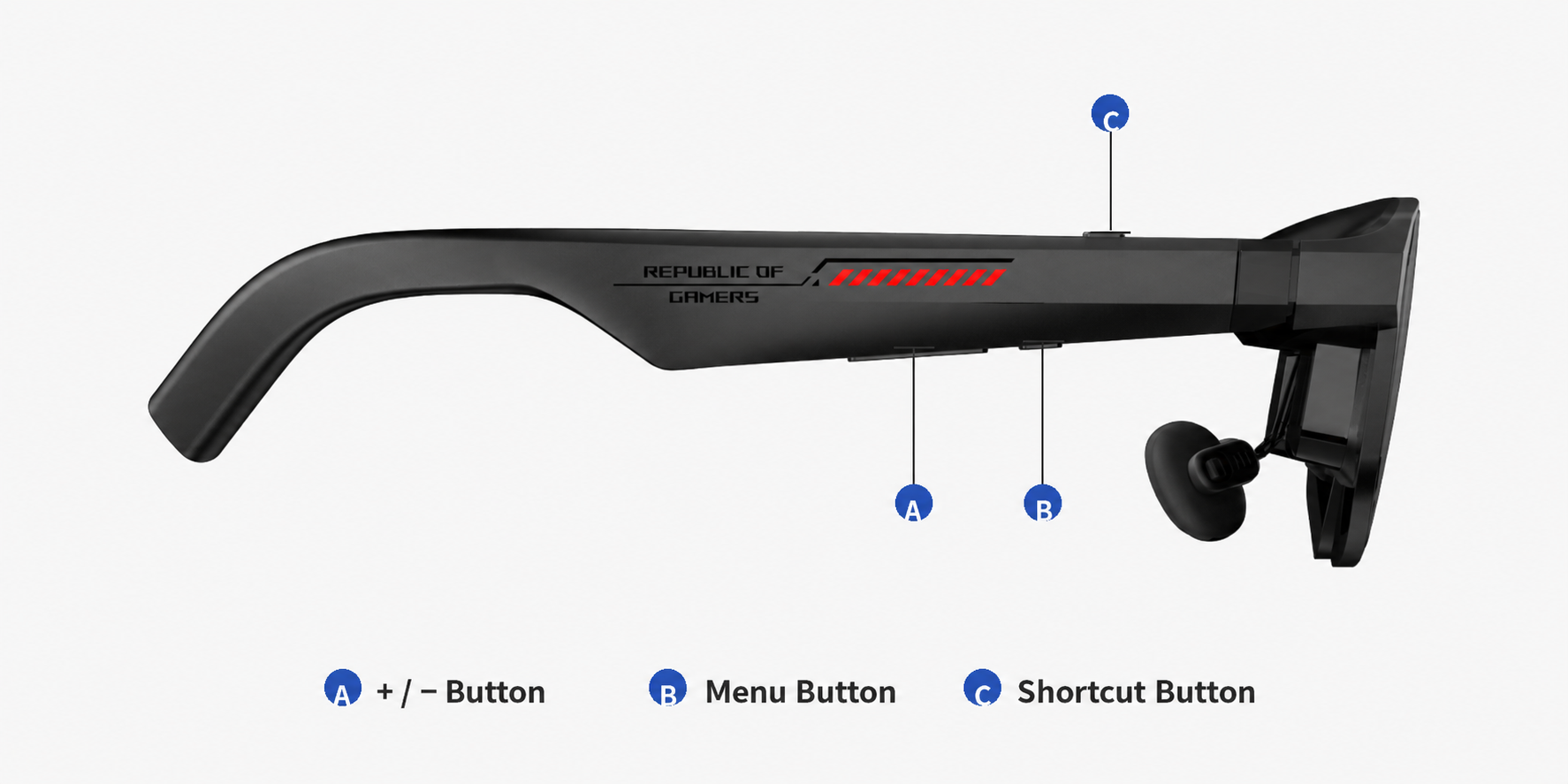
| Button | Action | Function |
|---|---|---|
| 「Quick Button」 | Single press | Activates Instant Transparency Mode |
| 「Quick Button」 | When the main menu or quick menu is active | Works as Close / Back and closes the active menu from any level |
| 「+ / - Button」 | When the quick menu is active | Adjusts the current value, such as up / down |
| 「+ / - Button」 | When the main menu is active | Navigates menu items, such as moving up / down |
| 「Menu Button」 | Single press | Opens the quick menu |
| 「Menu Button」 | Double press | Opens the main menu |
| 「Menu Button」 | When a menu is active | Confirms / selects the current menu item |
Switching Display Modes
- In 「Anchor」 Mode, the display remains fixed in space. When you turn your head or lean back, the screen stays in a fixed spatial position.
- In 「Follow」 Mode, the display follows your head movement, keeping the screen centered in your field of view at all times.
When moving your head in either mode, slight motion blur or trailing effects may occur due to natural visual persistence. Reducing brightness may help minimize this effect.
Recenter the Screen
- In 「Follow」 Mode, use the 「Menu Button」 on the ROG Control Dock or the OSD menu to recenter the screen.
Volume / Brightness / Electrochromic Dimming Adjustment
- Use the 「Menu Button」 to open the quick menu or main menu.
- Use the 「+ / - Button」 to navigate and adjust the level of the desired function.
ROG Control Dock Buttons
ROG Control Dock provides quick control for source switching, gaming features, and spatial display controls.
| Button / Feature | Description |
|---|---|
| GamePlus | Opens or switches GamePlus gaming assistance features |
| GameVisual | Opens or switches GameVisual display modes |
| Input Select | Switches between input sources |
| 「Menu Button」 | Switches between 「Anchor」 Mode and 「Follow」 Mode |
| 「Menu Button」 | Single press opens the quick menu; double press opens the main menu; confirms / selects when a menu is active |
| Back / Close | Closes the active menu or returns to the previous level when the main menu or quick menu is active |
OSD Menu
- Double-click the「X」button to open the OSD menu.
- You can adjust display, audio, shortcut settings, and more.
👉 Click to view detailed menu settings.
Menu Navigation
Inside the function menu:
- Click 「Menu Button」: Confirm selection
- Click 「+ / -」: Navigate up or down
- Click 「Quick Button」 or 「Back / Close」 on Control Dock: Return to the previous level / Close menu
Language Setting
After the first successful connection, you will be prompted to select your preferred display language. The language can be changed anytime in the settings menu.
Tips
If you notice slight motion blur or trailing effects, it is due to natural visual persistence. Reducing brightness may help minimize this effect.