Use REAL 3D and SBS 3D
With 「REAL 3D」, XREAL 1 Pro+ turns photos, videos, livestreams, and games into spatial 3D at 60fps — directly on the glasses, with no extra software or accessories.
Use REAL 3D
- Start the 2D content you want to view.
- Double-click 「X」 and open 「Spatial Screen」 > 「3D Mode」.
- Select 「REAL 3D」.
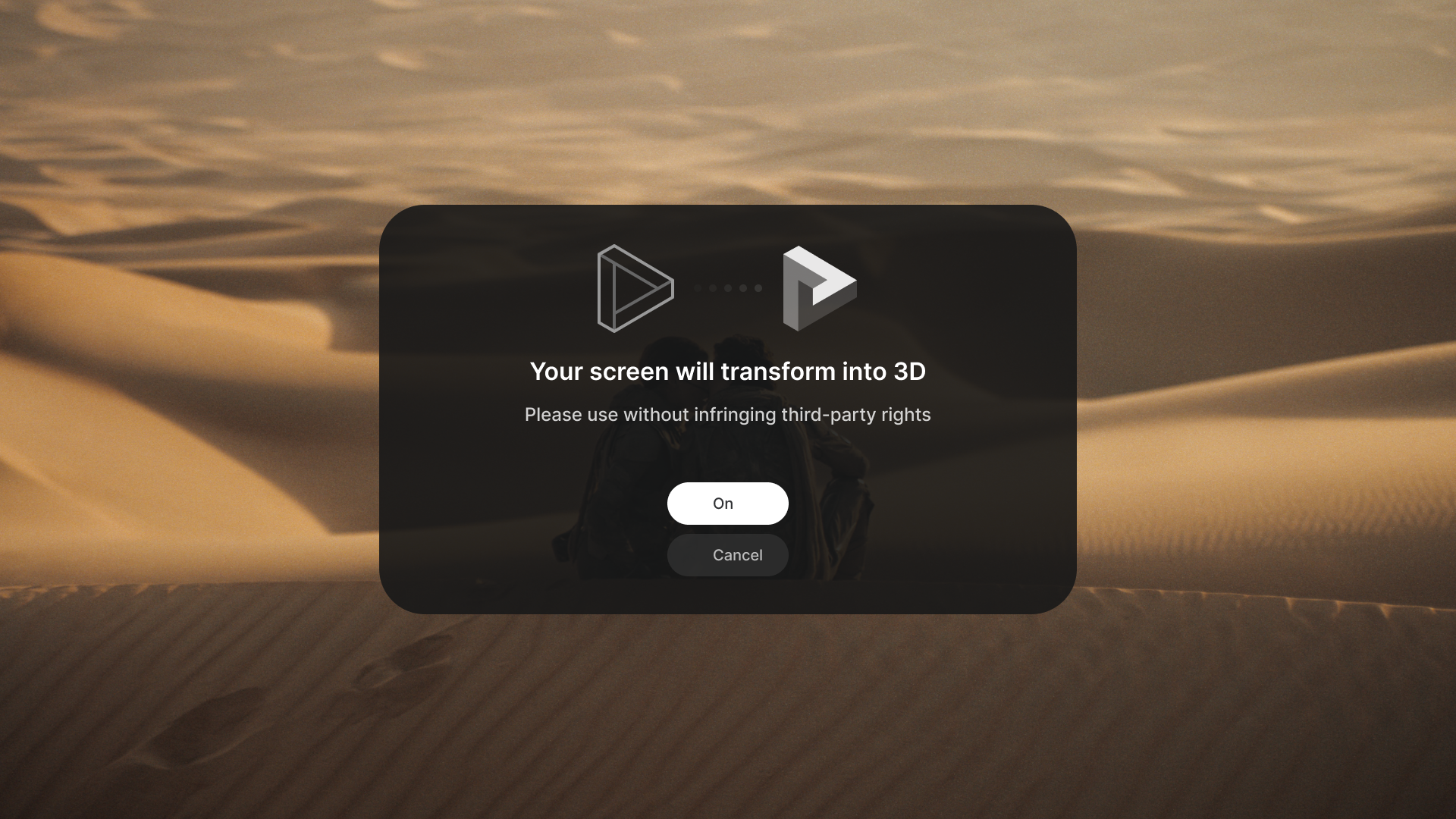
- Read the on-screen rights notice, then confirm only if you are authorized to transform the content.
The screen may briefly go black while the video link changes. To stop conversion, return to 「3D Mode」 and select 「2D」.
Play SBS 3D content
SBS (Side-by-Side) videos place the left-eye and right-eye images next to each other. Select the matching 3D mode so that the glasses present each image to the correct eye.
| Source format | Typical resolution | OSD option |
|---|---|---|
| Full SBS: no horizontal compression | 3840 × 1080 | 「3D Full SBS」 |
| Half SBS: horizontally compressed views | 1920 × 1080 | 「3D Half SBS」 |
Watch on a video website
- Connect XREAL 1 Pro+ to your device and confirm that the image displays correctly.
- Open a video website such as YouTube, then search for and play an SBS 3D video.
- Double-click 「X」 and open 「Spatial Screen」 > 「3D Mode」.
- Select 「3D Full SBS」 or 「3D Half SBS」 to match the source format in the table above.
- Switch the video to full screen and watch it through the glasses.
You can try the SBS 3D video playlist referenced in the One Series guide.
Watch on a compatible Android phone
- Connect the glasses directly to an Android phone that supports video output and confirm that the image appears.
- Download an SBS 3D video to the phone and open it in a compatible video player.
- Double-click 「X」 and open 「Spatial Screen」 > 「3D Mode」.
- Select 「3D Full SBS」 or 「3D Half SBS」 to match the video, then play it in full screen.
Watch on Beam Pro
- Download the 3D content to Beam Pro.
- Connect the glasses and open the content in Beam Pro's built-in media player.
- Play the video. You do not need to manually enable 「3D Mode」 on the glasses for this playback method.
Beam Pro's built-in player supports SBS, top-and-bottom, 360° panoramic, and 180° panoramic 3D content. SBS places the two eye views side by side; top-and-bottom stacks them vertically. Panoramic formats let you view content around you or within the forward hemisphere.
Watch on a Windows or Mac computer
- Connect the glasses to the computer and confirm that the image displays correctly.
- Open the SBS video in a compatible player.
- Double-click 「X」 and open 「Spatial Screen」 > 「3D Mode」.
- Select 「3D Full SBS」 or 「3D Half SBS」 to match the video, then play it in full screen.
If the picture remains split or looks stretched, check the source format and the player's display settings. If you do not have SBS content, use 「REAL 3D」 to convert ordinary photos, videos, livestreams, and games into spatial 3D.
Mode limits
- 「3D Mode」, 「UltraWide Mode」, and 「Side View」 are mutually exclusive.
- 「Reading」, 「AI HDR」, and those spatial layouts cannot stay active together when they conflict. Selecting a new mode can turn off the conflicting mode without an extra prompt.
- Screen size and distance remain adjustable, but their available range can differ by 3D mode.