XREAL 1 Pro+ User Guide
This guide introduces the features, controls, and settings of XREAL 1 Pro+ and helps you get started with your glasses.
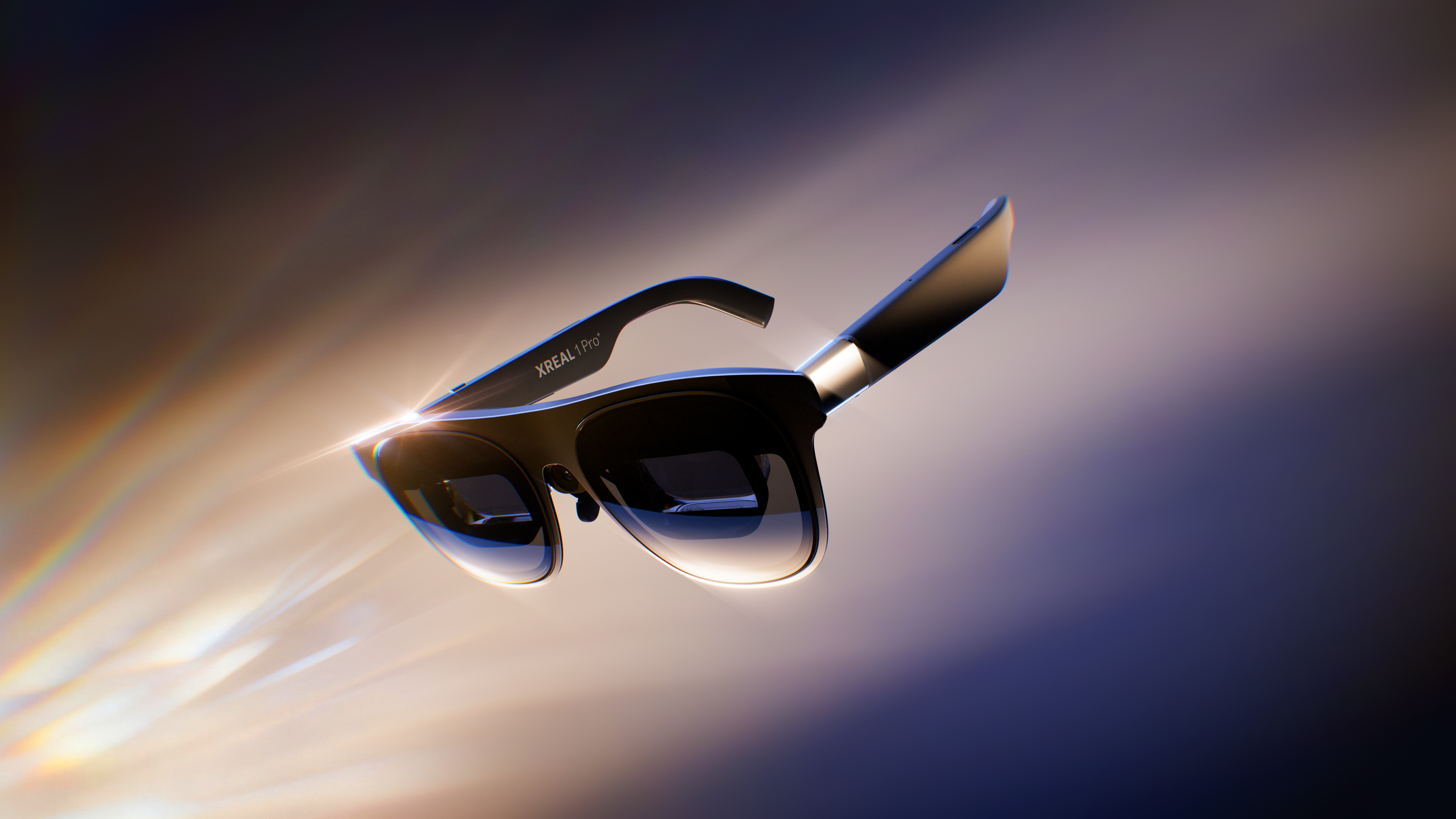
Product Overview
XREAL 1 Pro+ brings a personal spatial screen to compatible phones, computers, and gaming devices. Connect the glasses to watch movies, play games, or work on a large virtual display. The built-in XREAL X1 chip lets you keep the screen in a fixed direction or have it follow your head movements.
X Prism optics provide a 57° field of view, while Sony Micro-OLED displays and sound tuned by Bose support an immersive viewing experience. Three-level electrochromic dimming, two frame sizes, interchangeable nose pads, and adjustable temple angles help you tailor the view and fit.
Core Features
Spatial Screen
Switch between 「Follow」 and 3DoF 「Anchor」, and recenter the screen with the 「X」 button. Adjust the virtual screen size and distance to suit your content and surroundings. 「UltraWide Mode」 provides a wider workspace, while 「Side View」 reduces the screen to a smaller window.
See spatial viewing modes and screen size, distance, UltraWide Mode, and Side View.
3D Viewing
Use AI-powered 「REAL 3D」 conversion to add depth to 2D content, or choose the matching SBS 3D mode for compatible 3D content. See REAL 3D and SBS 3D.
Display and Sound
Choose 「Reading」, 「Cinema」, or 「Standard」 display mode, adjust color temperature, and control brightness and volume. 「AI HDR」 enhances brightness and detail, with maximum perceived brightness of 1200 nits in 「Follow」 or 「Anchor」. Available combinations depend on the selected display and spatial modes. See Display and Sound.
Stabilizer and Auto Transparency
Use 「Stabilizer」 to reduce screen shake in 「Follow」 mode. With 「Auto Transparency」 enabled, the lenses become more transparent when you look away from the anchored screen. See stabilizer and transparency features.
Fit and Comfort
Adjust the nose pads and temple angles to center the image and improve wearing comfort. See Set Up and Fit the Glasses.
Accessory Features
With the optional XREAL Eye accessory, you can use 6DoF spatial anchoring and supported gesture controls. These features require the accessory. See Use Spatial Anchor and Gesture Control.
Compatible Devices
XREAL 1 Pro+ connects directly to devices that support DisplayPort video output through USB-C, including compatible smartphones, computers, and gaming handhelds.
DisplayPort (DP) carries video and audio from a source device to an external display. A USB-C port alone does not guarantee DP video output. Check your device specifications or contact its manufacturer before connecting. Devices with other ports may require a compatible adapter or accessory.
Connection
- Confirm that your source device supports video output through the connection you plan to use.
- Connect the glasses to the source using a compatible USB-C cable, or a supported adapter if needed.
- Put on the glasses. A virtual screen appears once the source recognizes the display.
- Adjust the fit, screen position, brightness, and volume for comfortable viewing.
See the Quick Guide for essential controls. If no picture appears, see connection and display troubleshooting.
Use Scenarios
- Work and study: Read documents, attend online classes, or use a larger workspace with a compatible computer.
- Gaming: Connect a compatible gaming device for a personal large-screen view.
- Movies and travel: Watch videos on a portable screen, with adjustable brightness and lens transparency.
- 3D entertainment: Explore AI-powered REAL 3D conversion or play compatible SBS 3D content.
For more options, see Settings and Specifications.
Frequently Asked Questions
For answers about power, firmware, prescription lenses, and accessories, see FAQ.