ROG Control Dock
The ROG Control Dock expands the connectivity of ROG XREAL R1, supporting game consoles, desktop PCs, and other multimedia devices.
The ROG Control Dock is equipped with 1 DisplayPort 1.4 interface and 2 HDMI 2.0 interfaces, suitable for connecting host devices that do not support USB-C video output. If your device does not support USB Type-C DP Alt Mode or Thunderbolt 4, you can use the ROG Control Dock to output HDMI or DisplayPort video to the glasses. Additionally, the ROG Control Dock supports ROG gaming features such as HDR, GamePlus, and GameVisual, helping you achieve more flexible display adjustments and a better visual experience in gaming scenarios.
Connecting Multiple Host Devices to the ROG Control Dock
The ROG Control Dock can connect up to 3 host devices simultaneously: 2 HDMI devices + 1 DisplayPort (DP) device. However, the glasses only support displaying the output of one connected host device at a time. When the ROG Control Dock is connected to multiple host devices, you can confirm the currently active video input source via the LED indicator on top of the device.
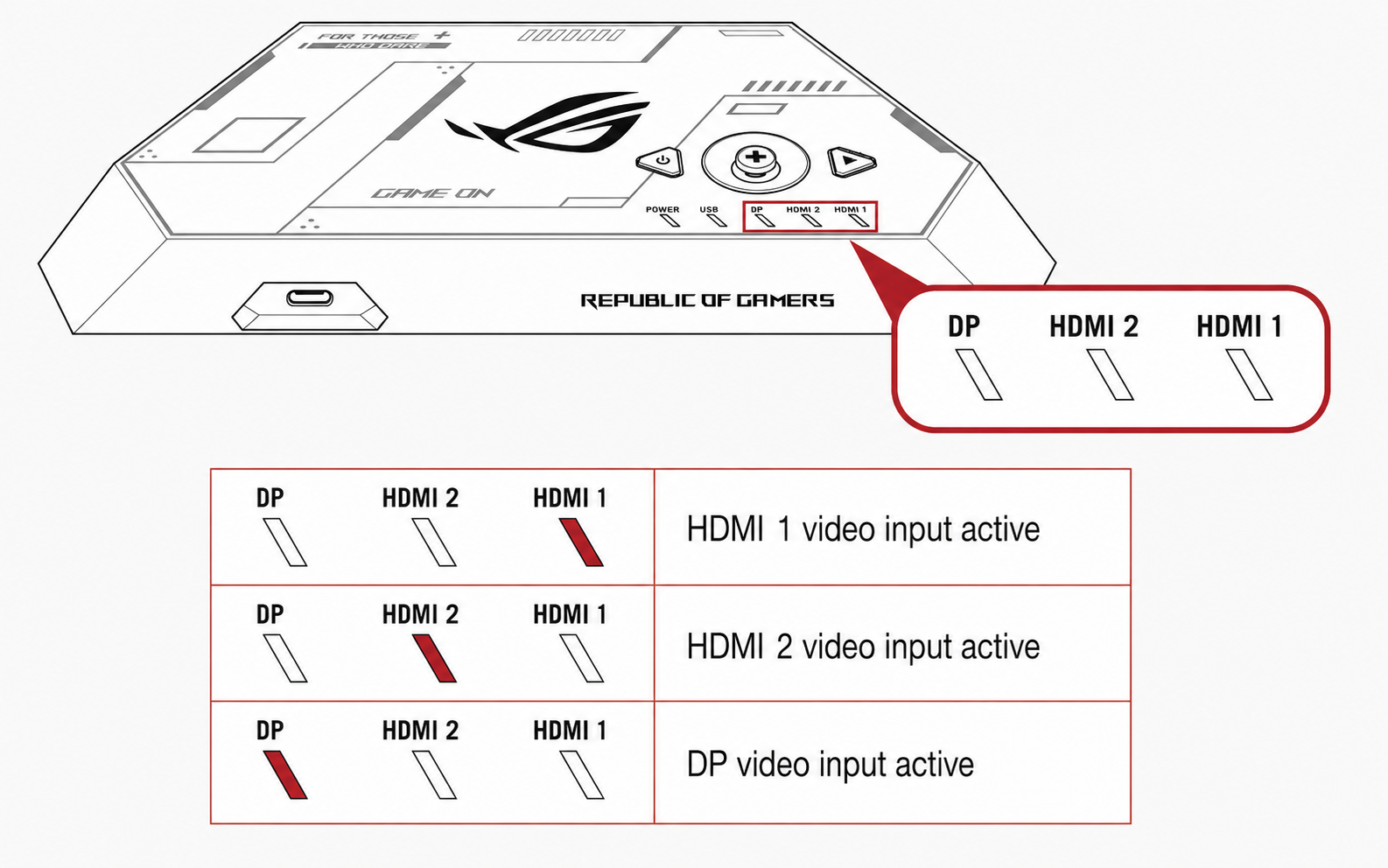 Follow these steps to switch the video input source:
-
Double-click the joystick to open the ROG Control Dock main menu.
-
Use the joystick to navigate to
Input Selectand press the joystick. -
Select the desired video input source and press the joystick to confirm.
- You can only switch to an input source with a valid video signal. Input sources without detected signals cannot be selected.
- By default, pressing the joystick also opens the
Input Selectmenu, unless you have reassigned the button function viaDock Main menu > MyFavorite > Shortcut.
ROG Control Dock Overview
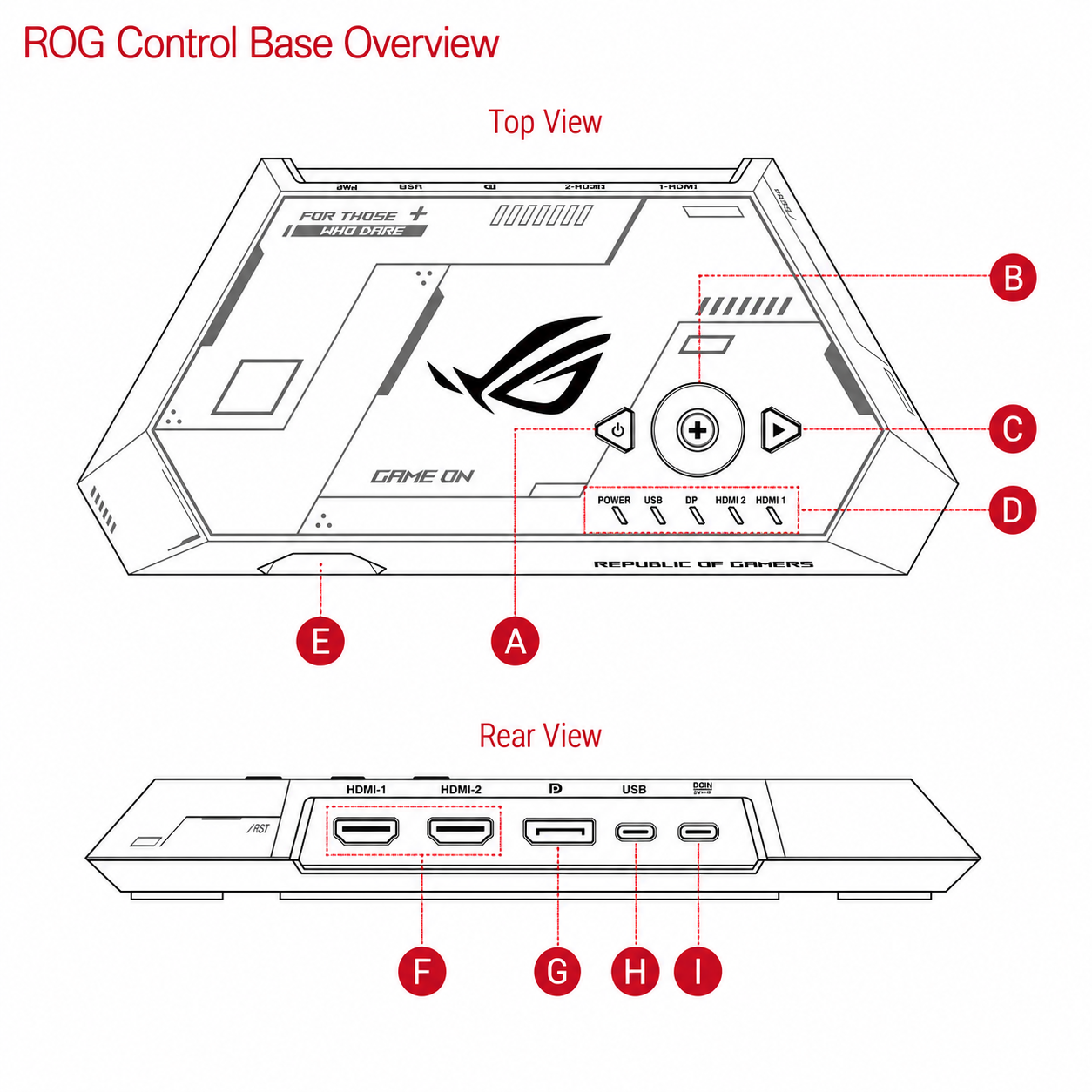
| Label | Name | Description |
|---|---|---|
| A | Power Button | Press the power button to turn the ROG Control Dock on or off |
| B | Joystick | The joystick is used to navigate up, down, left, and right in the OSD menu for selection |
| C | Close Button | Press the Close button to close the menu. When the menu is closed, pressing this button toggles the Frame Rate Boost feature. |
| D | LED Indicator | The red LED indicator shows the current detected connection status, including enabled video input, USB power input, and data connection. |
| E | USB Type-C Port (Video Output) | This port connects the glasses to the ROG Control Dock and outputs the image from the dock to the glasses. |
| F | HDMI Port (Video Input) | This port connects to an HDMI signal source (e.g., desktop, laptop, or game console) to transmit the image to the ROG Control Dock. |
| G | DisplayPort Port (Video Input) | This port connects to a DisplayPort signal source (e.g., desktop, laptop, or game console) to transmit the image to the ROG Control Dock. |
| H | USB 2.0 Type-C Port (Power Input & Data Transfer) | This port connects the host device to the ROG Control Dock for power supply and USB data transfer. |
| I | USB Type-C Port (Power Input) | This port provides additional power input to the ROG Control Dock. |
Power On
The ROG Control Dock will automatically power on when the rear USB Type-C port is connected to a powered host device, or when one port is connected to a host device and the other port is connected to a USB-C DC power input.
Power Off
Long press the power button for at least 3 seconds to shut down the ROG Control Dock. To restart, press the power button.
Using the ROG Control Dock to Access the OSD Menu
Joystick Usage
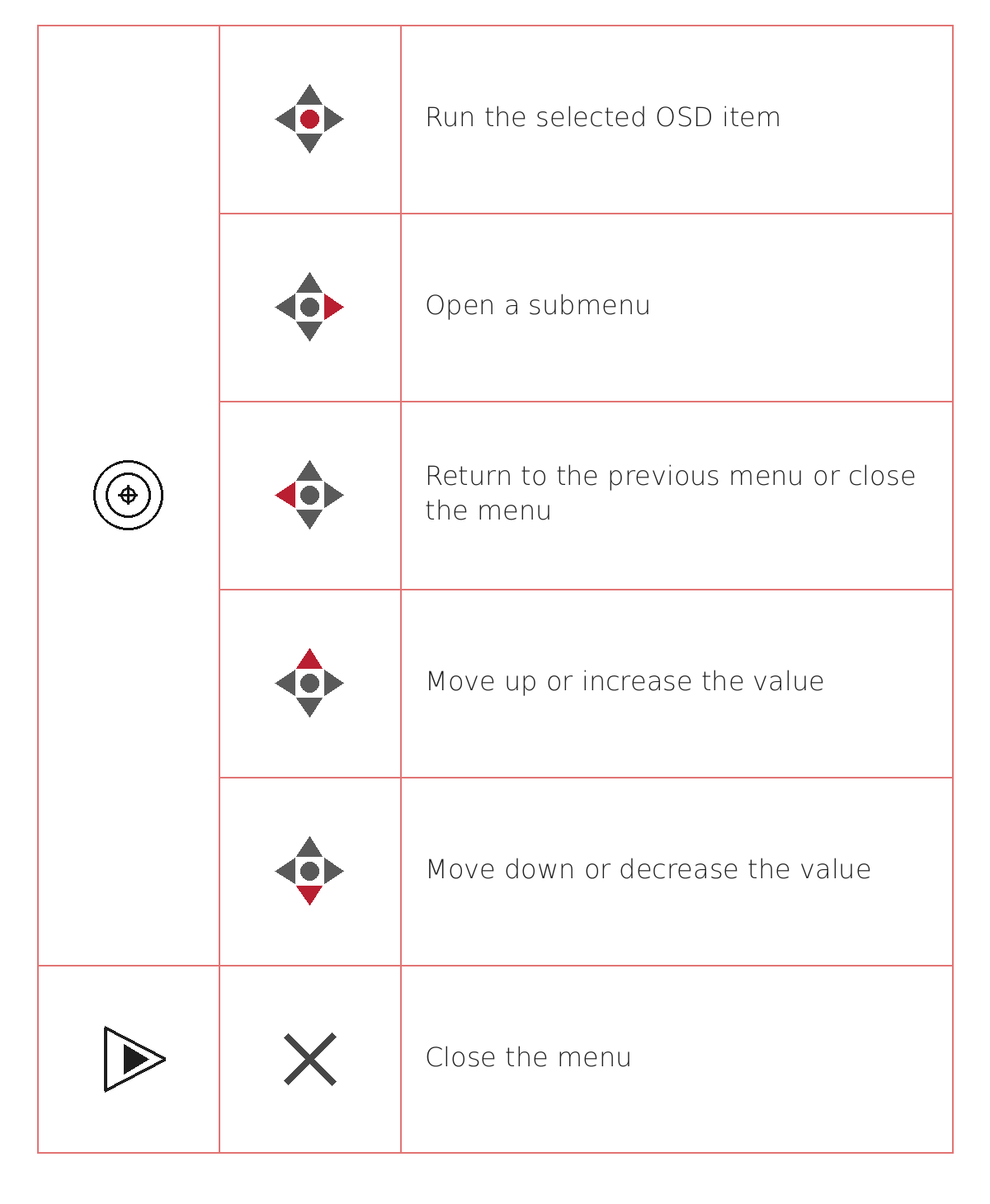
Quick Menu
Single-click the joystick on the ROG Control Dock to open the 「Quick Menu」.
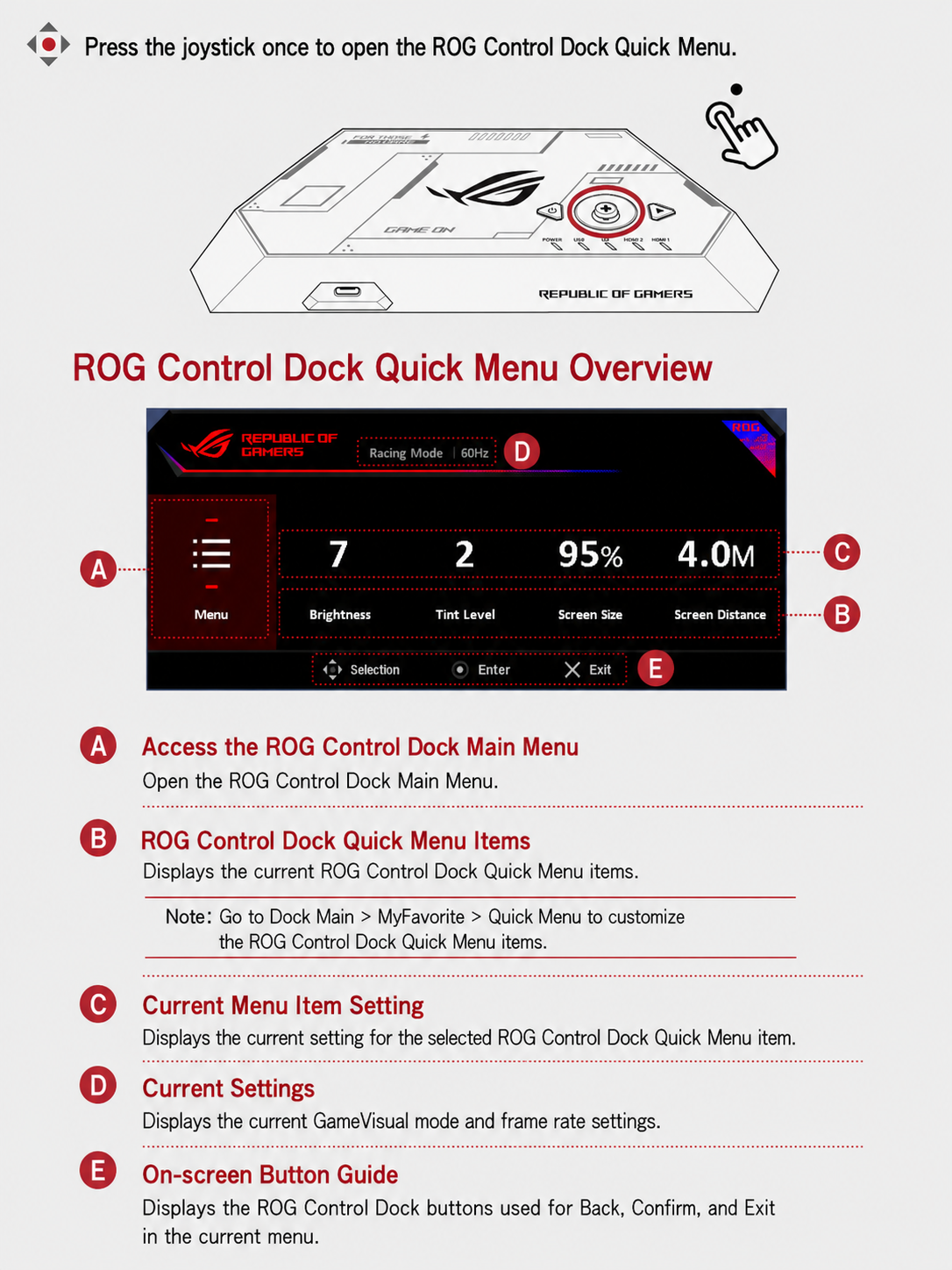
Main Menu
Double-click the joystick on the ROG Control Dock to open the 「Main Menu」.
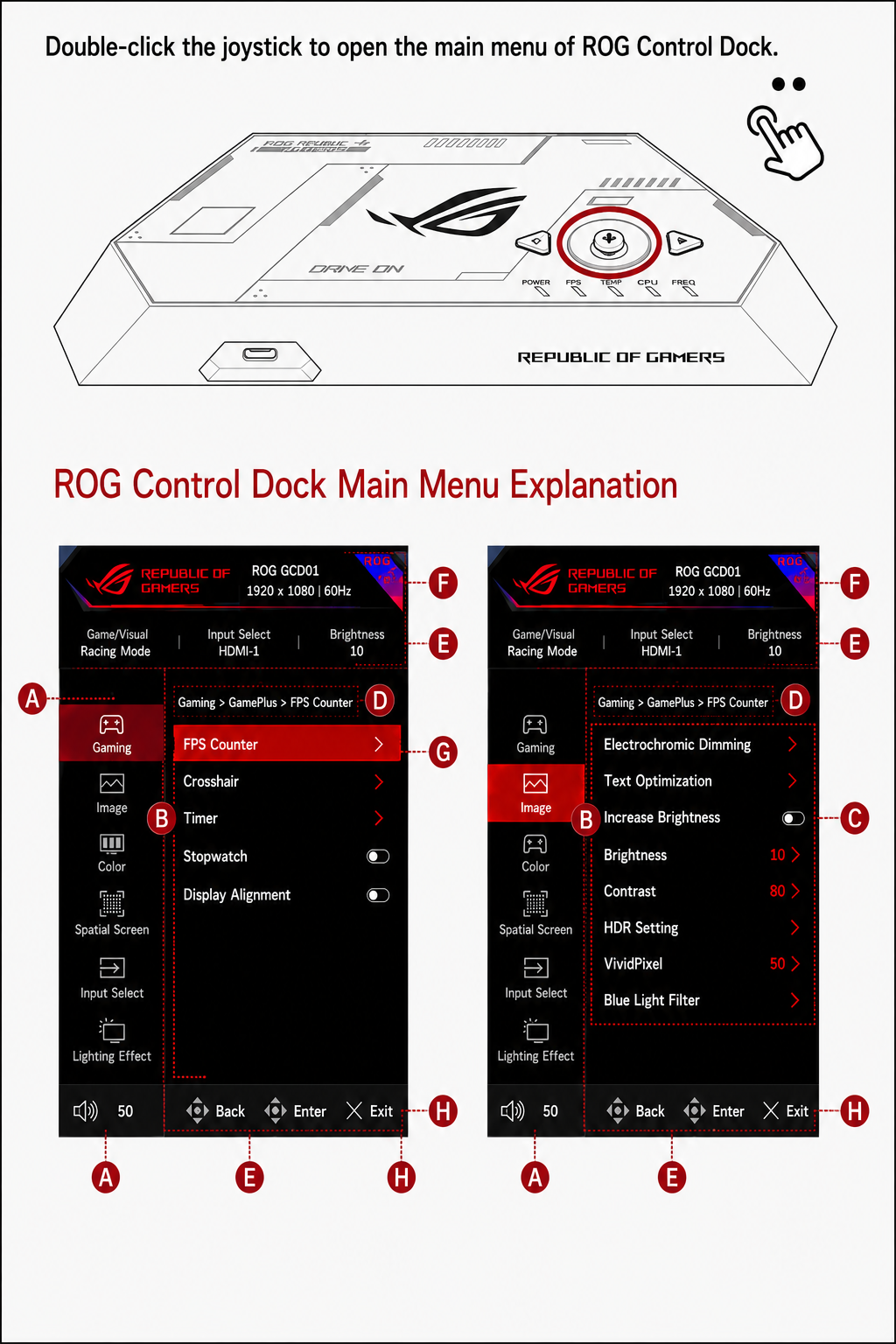
| Label | Name | Description |
|---|---|---|
| A | Top-Level Menu | Displays the top-level menu. |
| B | Menu Items or Sub-menus | Displays the menu items for the selected top-level menu, or its sub-menus. |
| C | Current Menu Item Settings | Displays the current settings for the listed menu items. If a menu item does not show a setting, select the item to open the settings screen. |
| D | Path Navigation | Shows your current position in the menu as a menu path. |
| E | Current Settings | Displays the current settings for the main menu items, including GameVisual mode, Input Select, brightness, and volume. |
| F | Output Resolution | Displays the resolution output from the ROG Control Dock to the glasses. |
| G | Selection Indicator | Shows the currently selected menu or menu item (highlighted with a red background). |
| H | Upper Menu Indicator | Shows the upper-level menu of the currently selected item (highlighted with a red background). |
| I | Screen Button Instructions | Displays the ROG Control Dock buttons for back, confirm, and exit in the current menu. |
The 「Main Menu」 includes the following top-level menus:
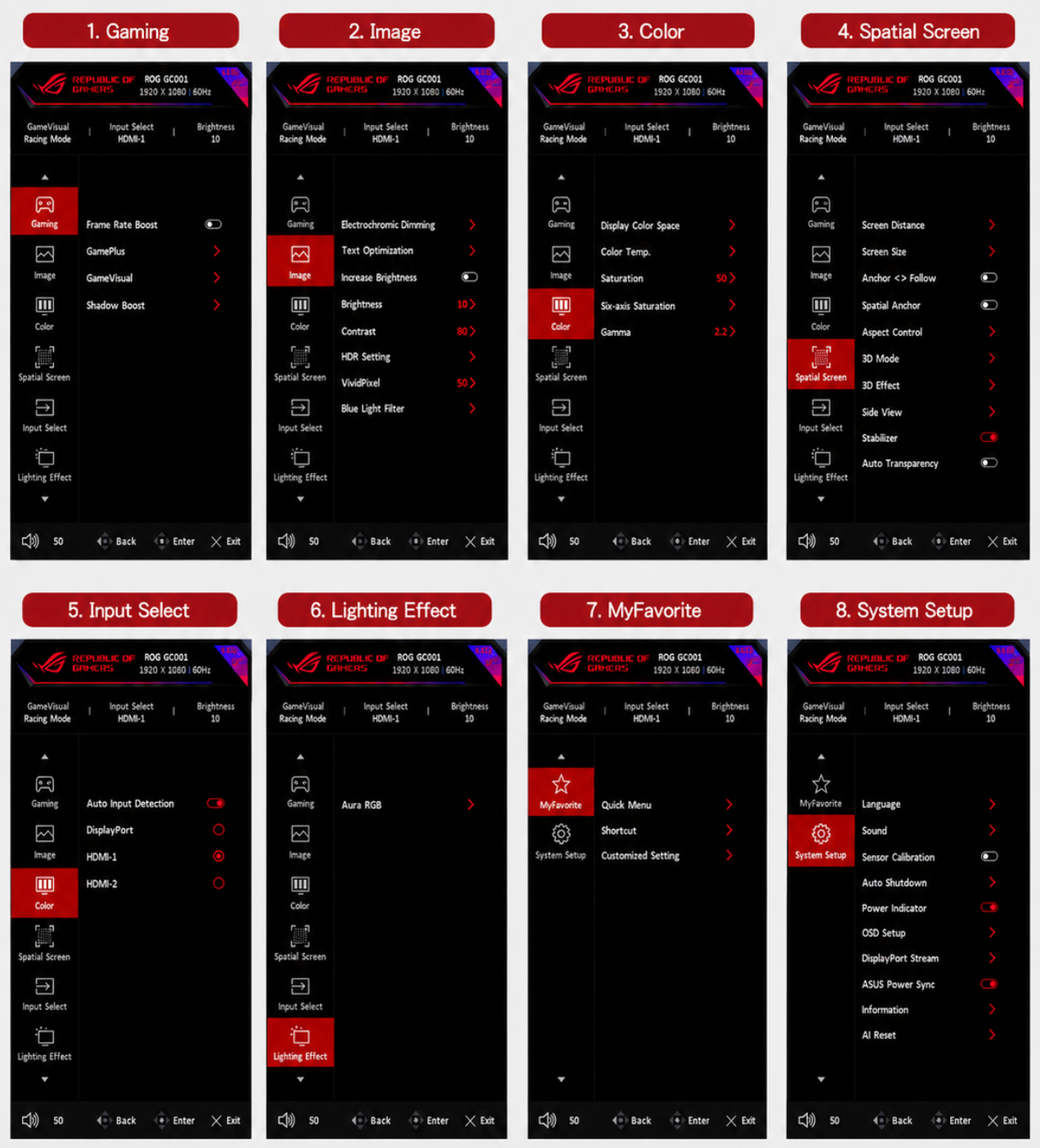
| Top-Level Menu | Description |
|---|---|
| Gaming | Gaming-related settings |
| Image | Image-related settings |
| Color | Color-related settings |
| Spatial Screen | Spatial screen settings |
| Input Select | Input source selection |
| Lighting Effect | Lighting effect settings |
| MyFavorite | Favorites and quick feature settings |
| System Setup | System settings |