Learn the Controls
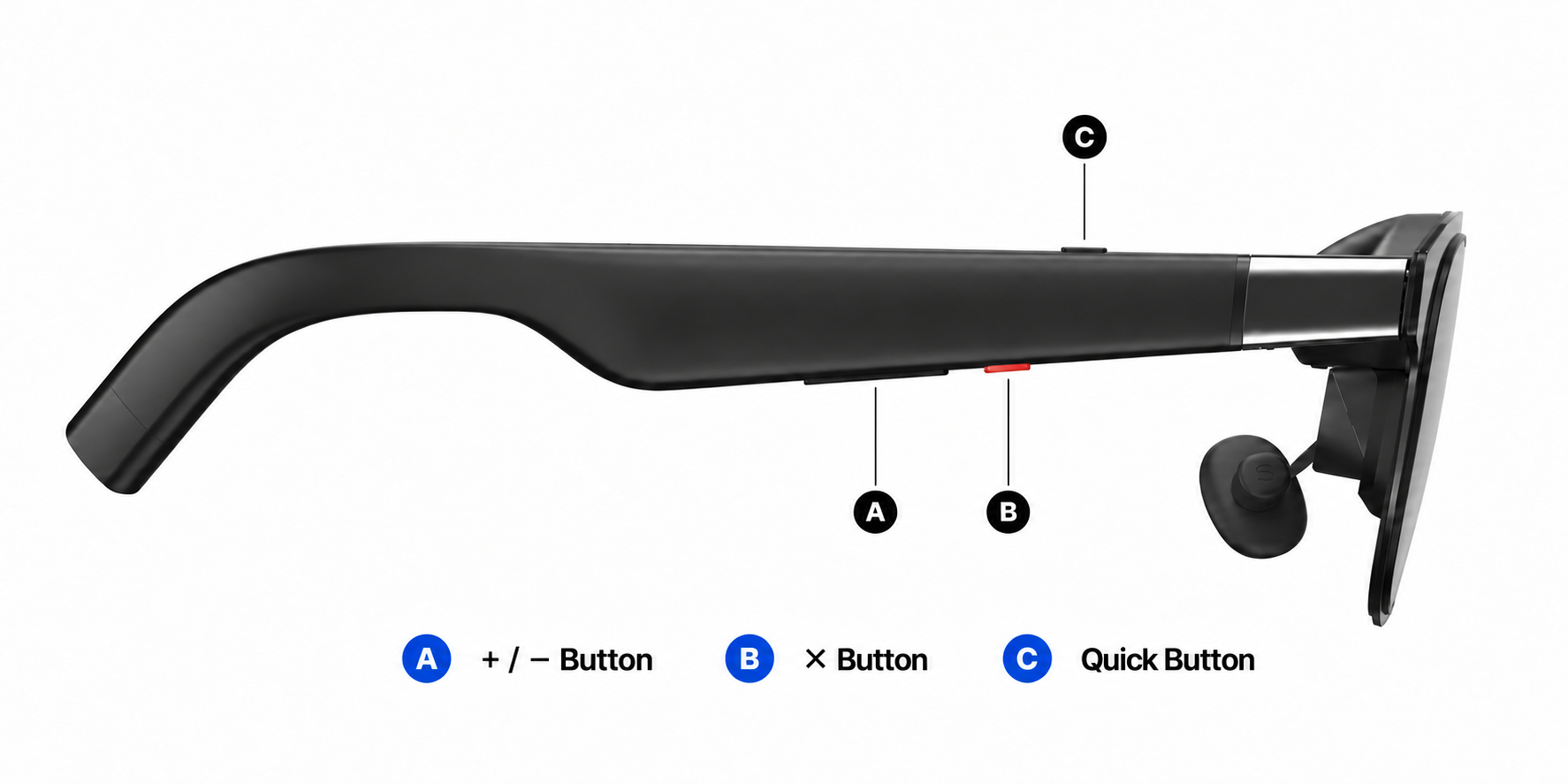
X button
The following actions apply when the OSD menu and Quick Panel are closed:
| Action | Result |
|---|---|
| Click | Switch between 「Follow」 and 「Anchor」. |
| Double-click | Open or close the OSD menu. |
| Press and hold | Recenter the virtual screen. |
+/− buttons
- Click 「+」 or 「−」 to open the 「Quick Panel」.
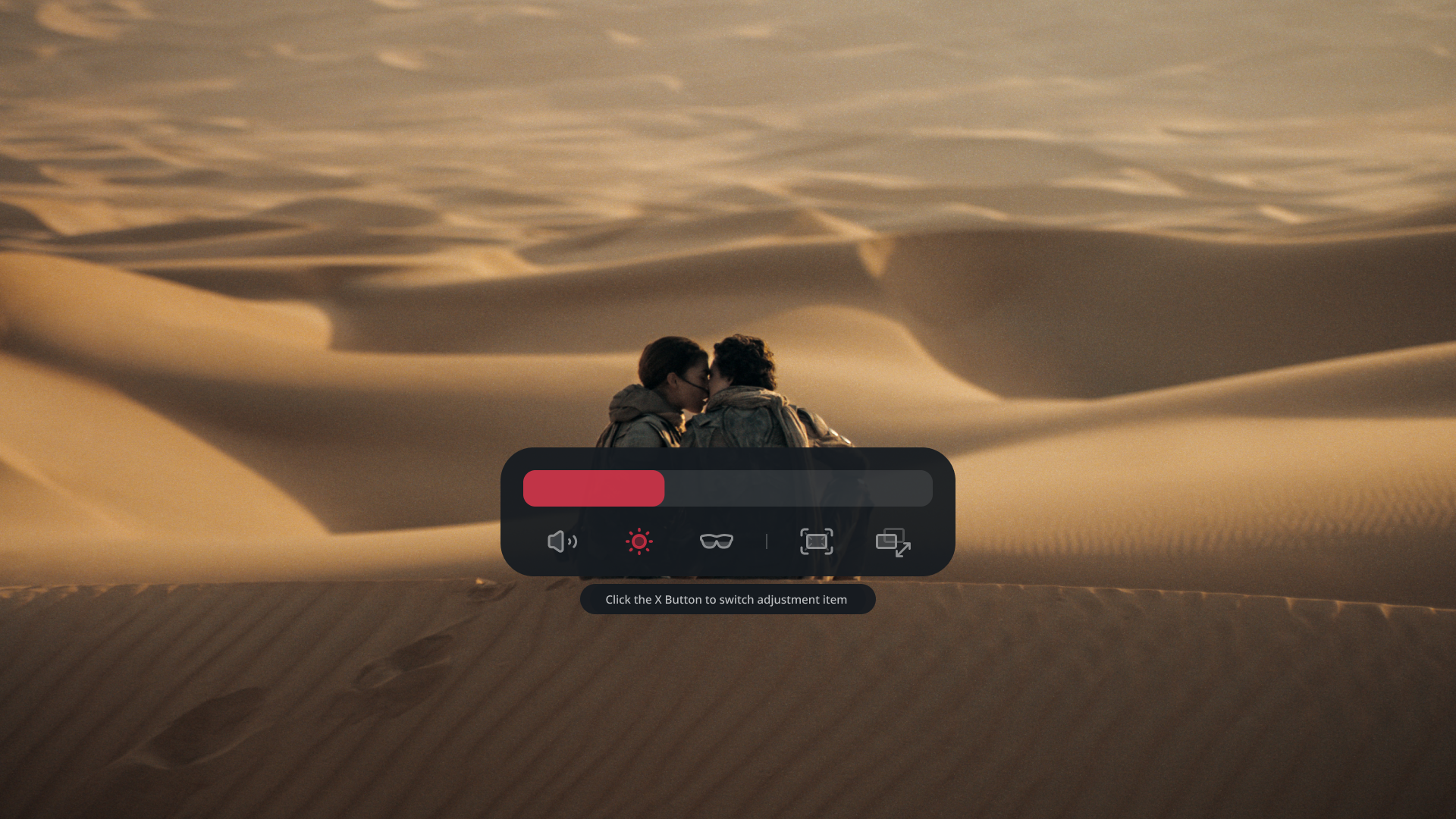
- While the panel is open, click 「X」 to switch between brightness, volume, electrochromic dimming, screen size, and screen distance.
- Use 「+」 / 「−」 to adjust the selected item. Press and hold for continuous adjustment.
Inside the OSD:
- Use 「+」 / 「−」 to move between items or change a value.
- Click 「X」 to confirm.
- Double-click 「X」 to go back. On an adjustment page, the current value is saved; on an option-selection page, leaving before confirmation discards the unconfirmed selection.
Quick button
The default assignments are:
| Action | Default function |
|---|---|
| Click | 「Display Mode」: cycle through 「Standard」 → 「Cinema」 → 「Reading」 → 「Standard」. |
| Press and hold | 「Dynamic Range」: switch between 「AI HDR」 and 「SDR」. |
| Double-click | 「None」: no function is assigned by default. |
You can assign supported shortcuts in 「Settings」 > 「Quick Button」.
What happens to the Quick button when XREAL Eye is connected or disconnected?
When you connect XREAL Eye, the Quick button is automatically assigned to:
- Click: take a photo.
- Press and hold: record video.
After disconnecting XREAL Eye
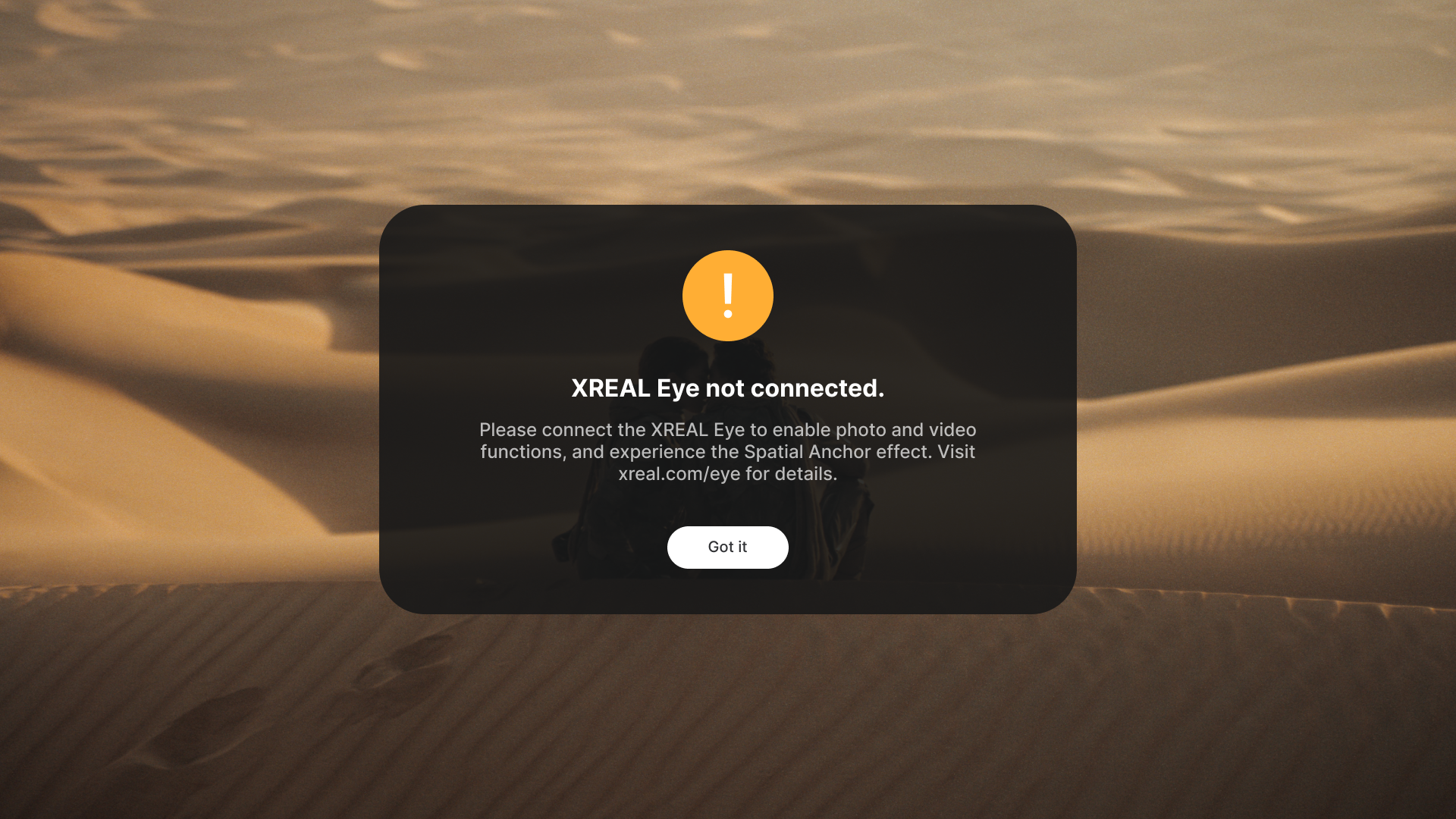
Disconnecting XREAL Eye does not automatically restore the previous Quick button assignments. Clicking the Quick button will display “XREAL Eye not connected.” This is expected behavior. To use the button for other functions, open 「Settings」 > 「Quick Button」 and reassign the click and press-and-hold actions.
For detailed photo and video instructions, see the XREAL Eye guide.