Capture & File Management
Learn how to capture photos and videos with XREAL Eye and manage your recorded files. When connected to XREAL One Series glasses and any supported device, you can enjoy an instant capture-and-record experience.
How to Use
-
Double-press the「X」 button to open the menu, and select「My」
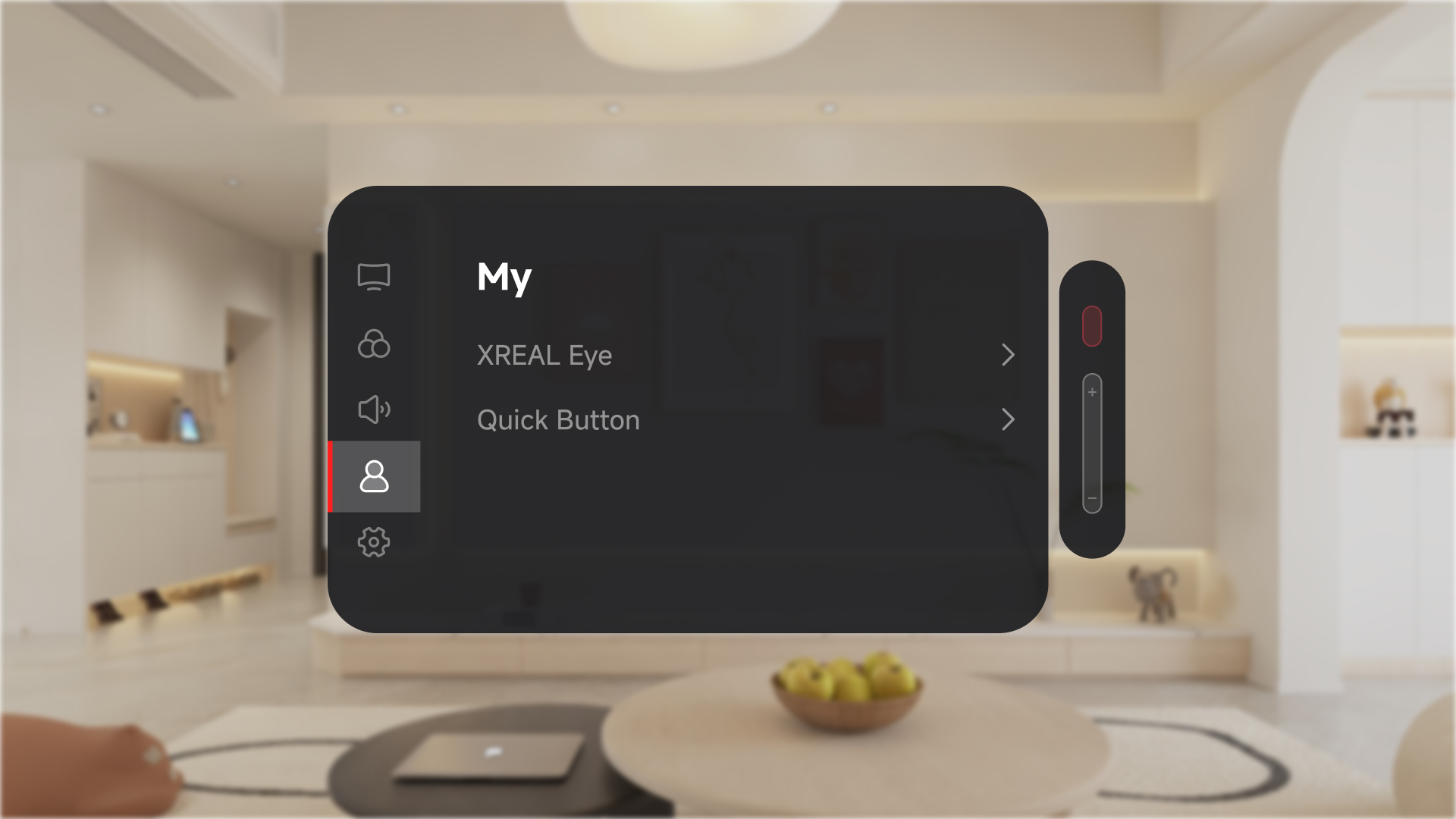
-
In the「Quick Button」, you can customize「Click」/「Long Press」/「Double Click」 settings by assigning「Take Photos」 or「Record」 to one of the 「Quick Button」 options.
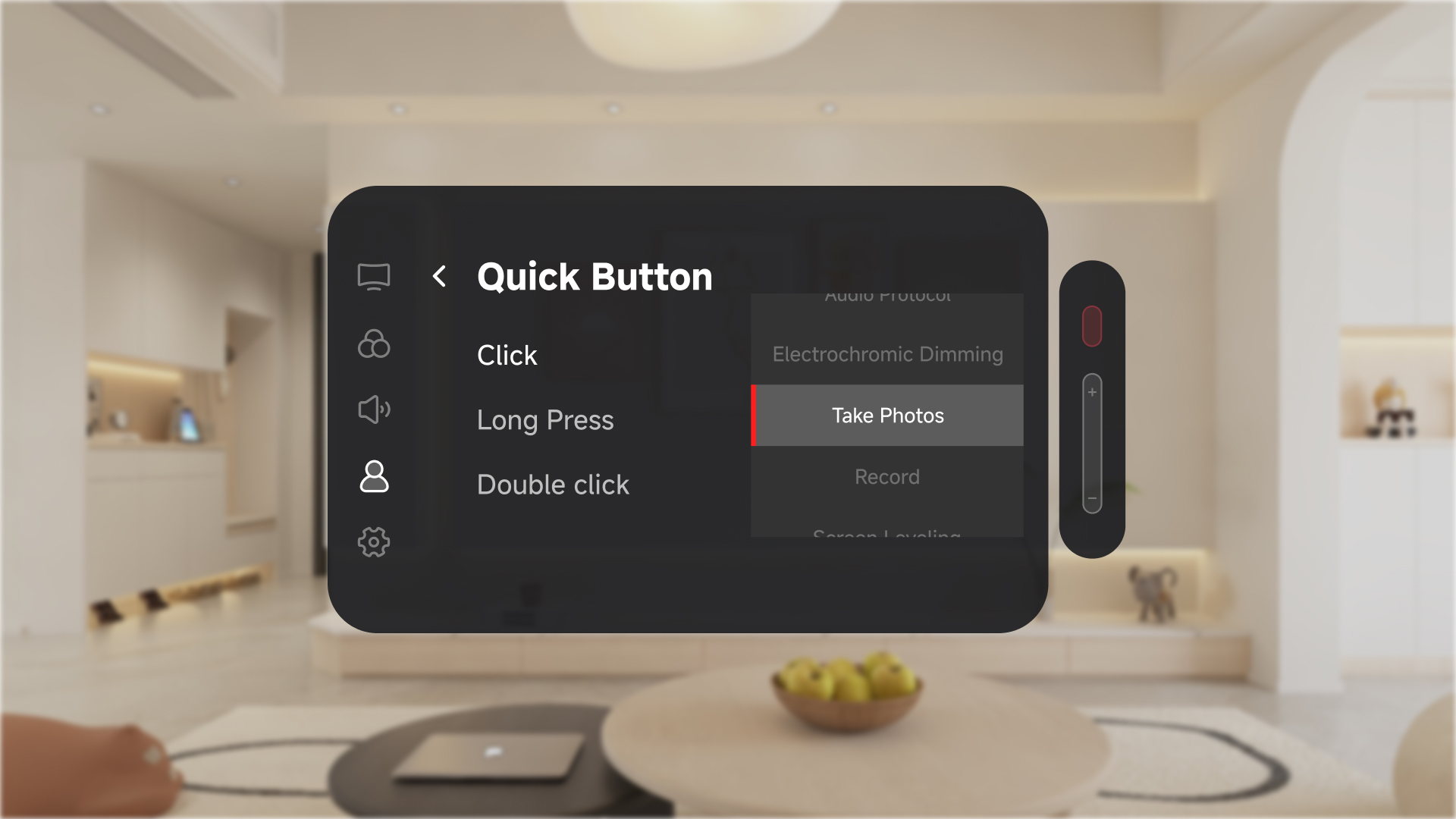
-
Double-press the「X」button again to exit the menu.
Use the 「X」button you just configured to take photos or record videos.
File Viewing & Export
- After taking photos or recording videos, the captured content is stored directly on the glasses. The glasses provide 2 GB of available storage space.
- Since there is currently no 「Photos」 app on the glasses, recorded content cannot be previewed directly.
- To view or manage your files, you need to export them to another device.
-
In the menu, go to the 「My」 →「XREAL Eye」 and tap 「Export Photos/Videos」 to enable 「Transmission Mode」
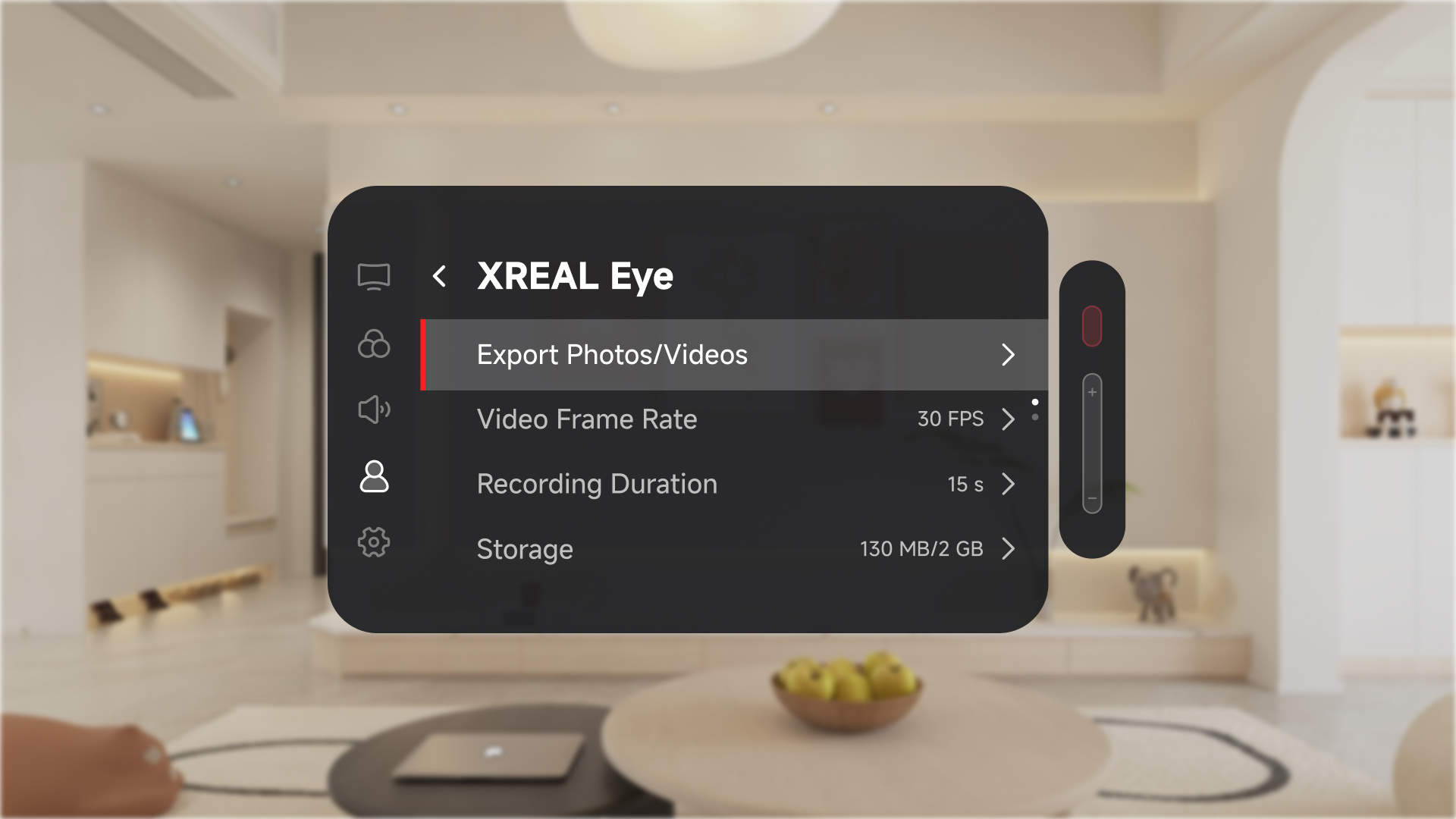
-
Keep 「Transmission Mode」 enabled and view or manage contents on the connected device
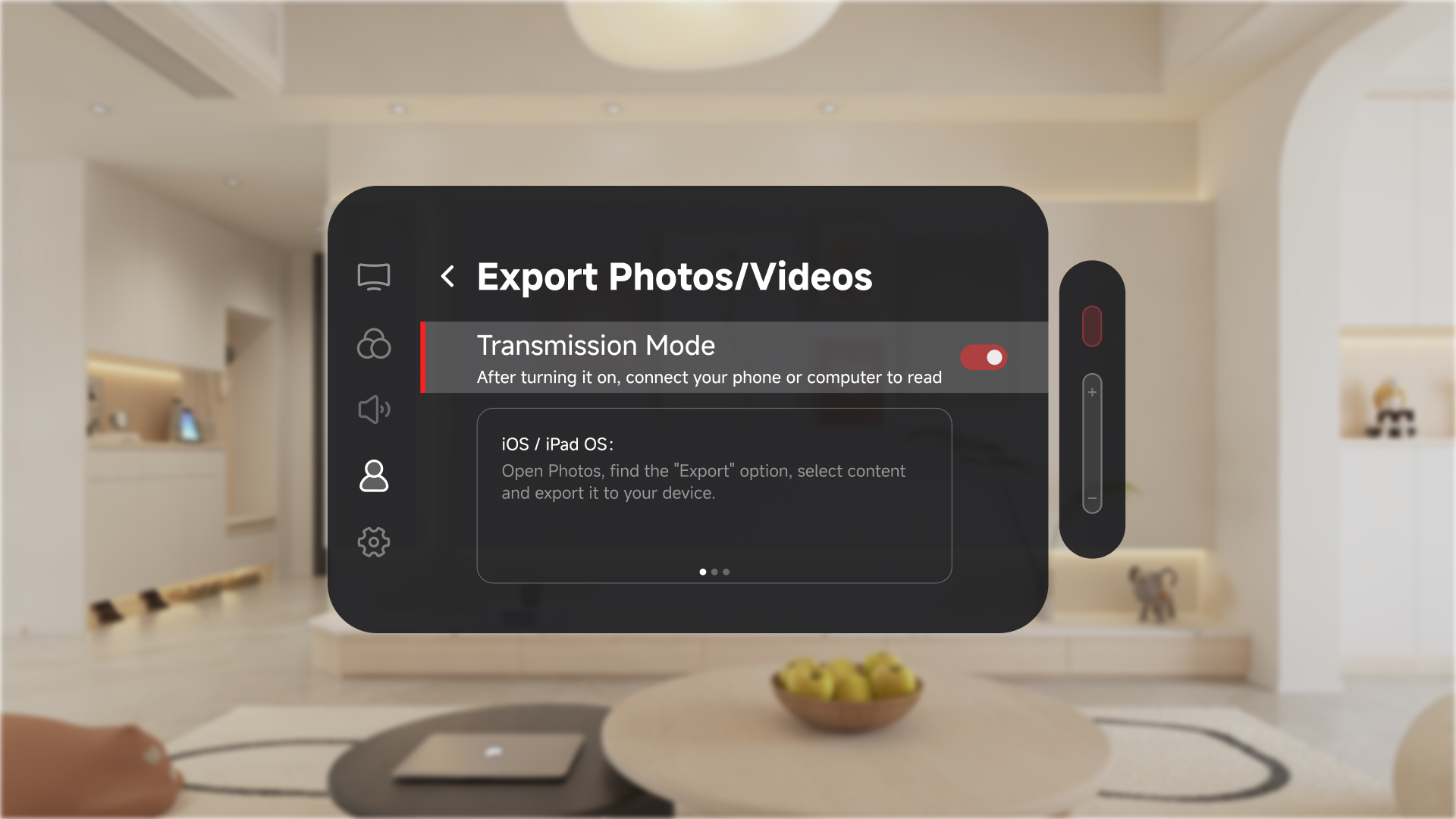
-
Android Devices
- Connect the device and enable「Transmission Mode」
- Enable OTG Transfer Mode on the Android device
- In the file manager, locate the external storage path:
XREAL/DCIM/
You can then view and manage the content
-
Windows Devices (including Windows laptops)
- Connect the device and enable 「Transmission Mode」
- An external device named XREAL will appear in File Explorer or on the desktop
Navigate toXREAL/DCIM/You can then view and manage the content
-
macOS Devices
- Connect the device and enable 「Transmission Mode」
- An external device named XREAL will appear in Finder
Navigate toXREAL/DCIM/You can then view and manage the content
-
iPhone Devices
- Open the Photos app
- Use the Import option to transfer the content to your device
-
Beam Pro
- Connect to Beam Pro
- In the「nebula OS」→「Photos」, you can import all contents with one tap