Spatial Anchor
Learn how to enable native 6DoF「Spatial Anchor」for a more natural viewing and interaction experience.
How To Use
- Enable「Spatial Anchor」in the OSD menu
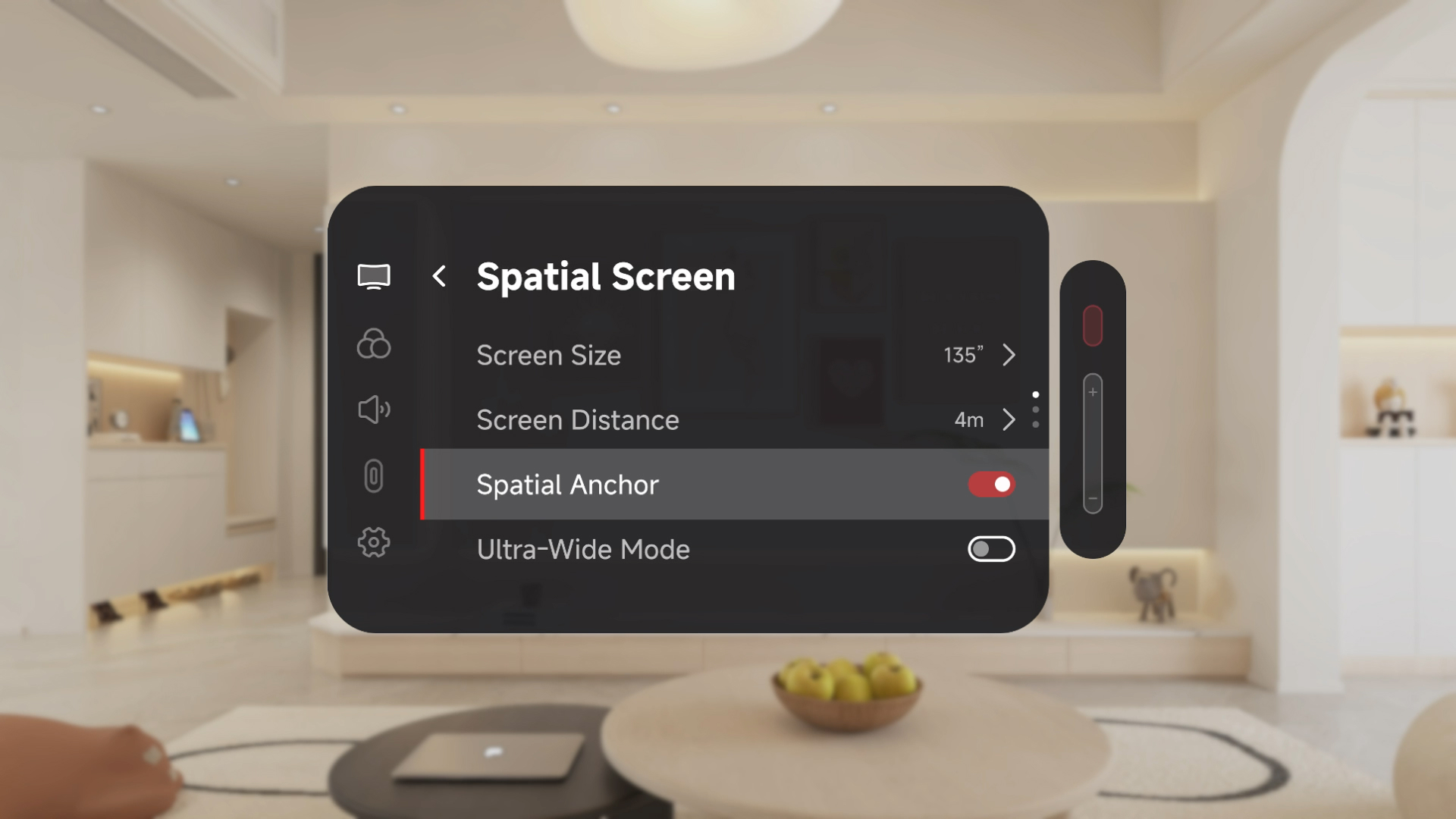
Once enabled,「Spatial Anchor」 will replace the original「Anchor」mode in the mode-switching cycle. After activation, the system will toggle between 「Follow」mode and 「Spatial Anchor」mode.
-
Follow the on-screen instructions to complete view calibration
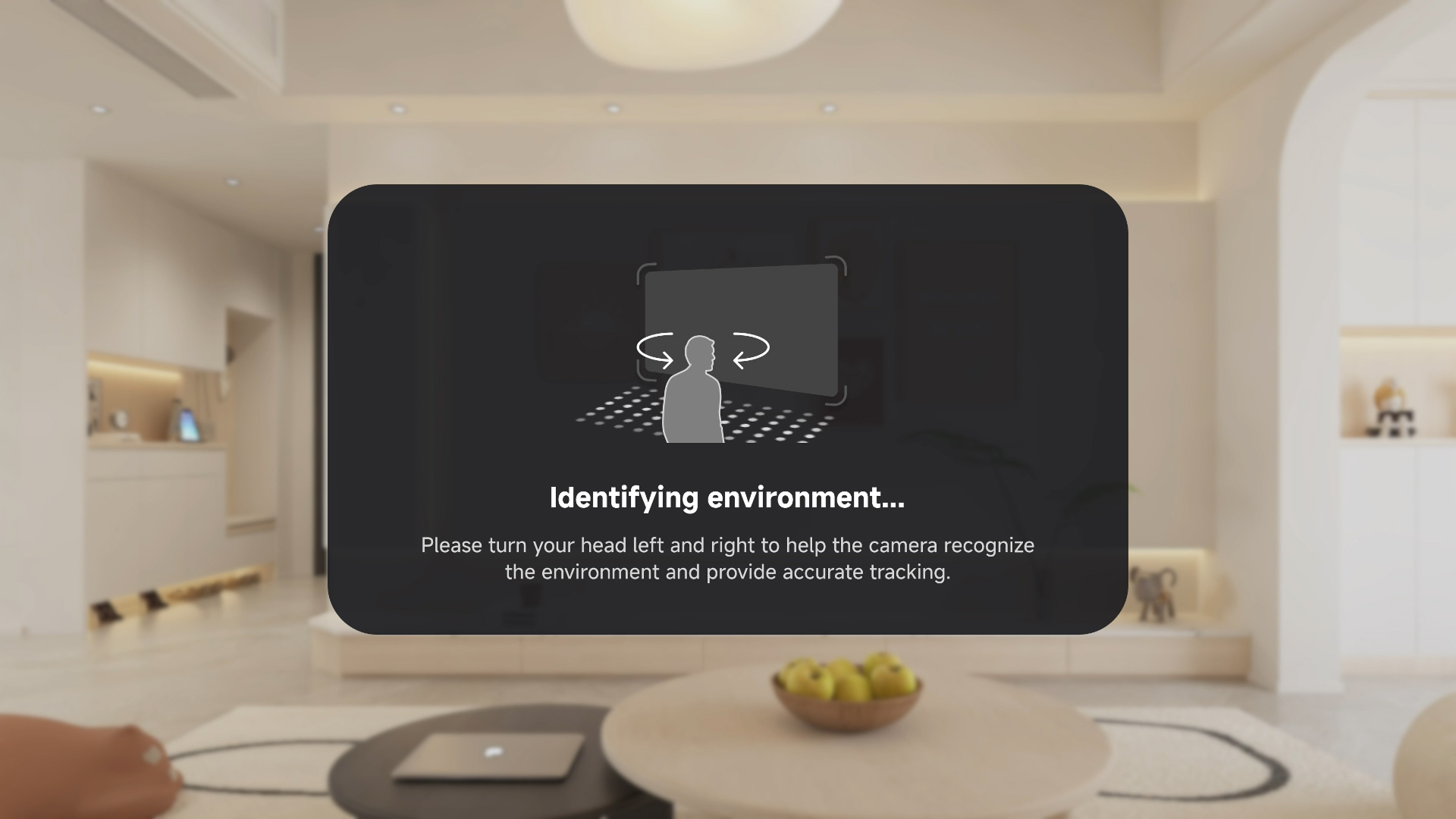
-
Start experiencing「Spatial Anchor」!
Recommended Experiences
-
Try walking through the screen!
- Enable and switch to 「Spatial Anchor」 mode, then long-press the 「X」 button to fix the screen in space.
- Pick up your device, walk toward the screen, and pass through it!
-
Try maximizing the screen and getting closer!
- Enable and switch to 「Spatial Anchor」 mode, then set the screen distance to 10 m and increase it to the maximum size in the Spatial menu.
- Walk closer to the screen!
-
「Spatial Anchor」 relies on the camera’s ability to capture and track environmental features. If the camera cannot reliably detect scene features, the system will automatically switch back to 「Follow」mode, including situations such as:
- Prolonged stationary states
- Low-light environments
- Facing a solid-color or textureless background
-
The stability of 「Spatial Anchor」 depends on accurate spatial positioning at the moment of activation. To avoid screen drift, please avoid:
- Moving your head while enabling the feature
- Facing moving or changing backgrounds during activation, such as playing videos or fast-moving outdoor scenery