Power and Bluetooth Pairing
Power & Bluetooth Pairing
Power On and Off
- Power On — Unfold the keyboard; power turns on automatically.
- Power Off — Fold the keyboard; power cuts off automatically as the device enters low-power storage sleep.
First-Time Connection to XREAL AURA
- Unfold the keyboard to enter pairing mode. When unfolded, the Power indicator glows white for 3 seconds before turning off, and the Status indicator blinks blue, indicating the keyboard is ready and awaiting pairing.
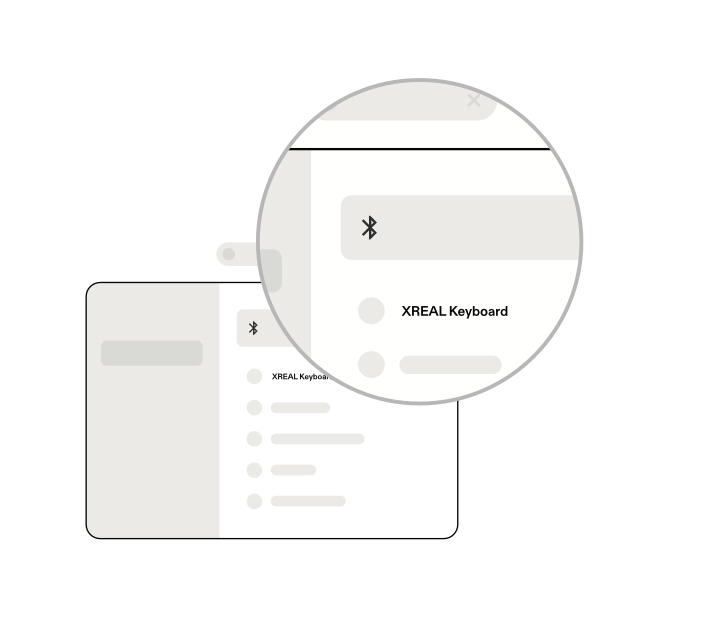
- Turn on Bluetooth discovery on XREAL AURA. Put on your XREAL AURA glasses, navigate to Settings > Bluetooth using the Compute Puck, ensure Bluetooth is turned on, and scan for nearby devices.
- Select the keyboard to complete pairing. Select XREAL Keyboard from the list of available devices. Once successfully paired, the Status indicator stops blinking and turns off.
Tip: After initial pairing, the keyboard remembers your device. In future sessions, simply unfold the keyboard to reconnect automatically with XREAL AURA within seconds.
Pairing with Additional Channels or Re-Pairing
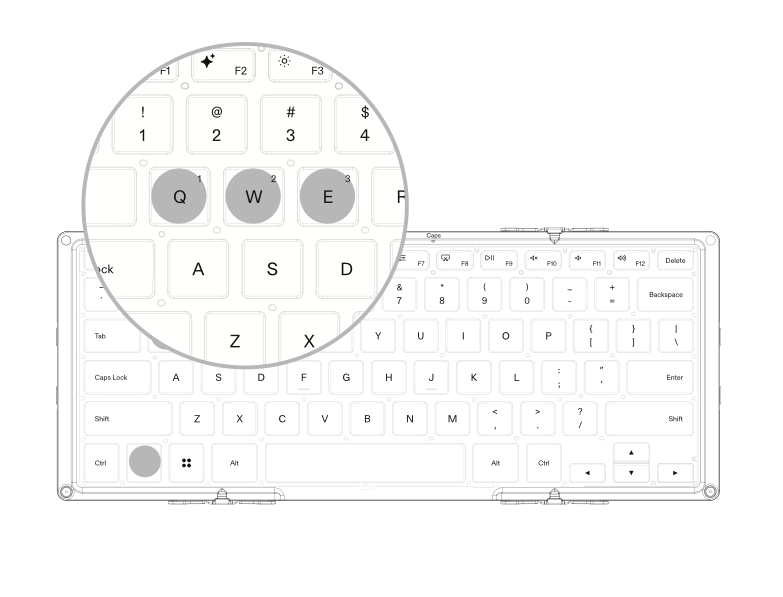
The keyboard stores up to 3 Bluetooth device profiles (Channel 1, Channel 2, Channel 3):
- Press
Fn + Q(Channel 1),Fn + W(Channel 2), orFn + E(Channel 3) to select the target channel. - Press and hold the corresponding key combination (e.g., hold
Fn + Qfor approximately 3 seconds) until the Status indicator rapidly blinks blue to enter pairing mode on that channel. - Search for and select XREAL Keyboard on the target device to complete pairing.