Quick Guide
This guide introduces the basic button functions of xbx a01 glasses, helping you get started quickly and enjoy the spatial big-screen experience.
Get Familiar with the Buttons
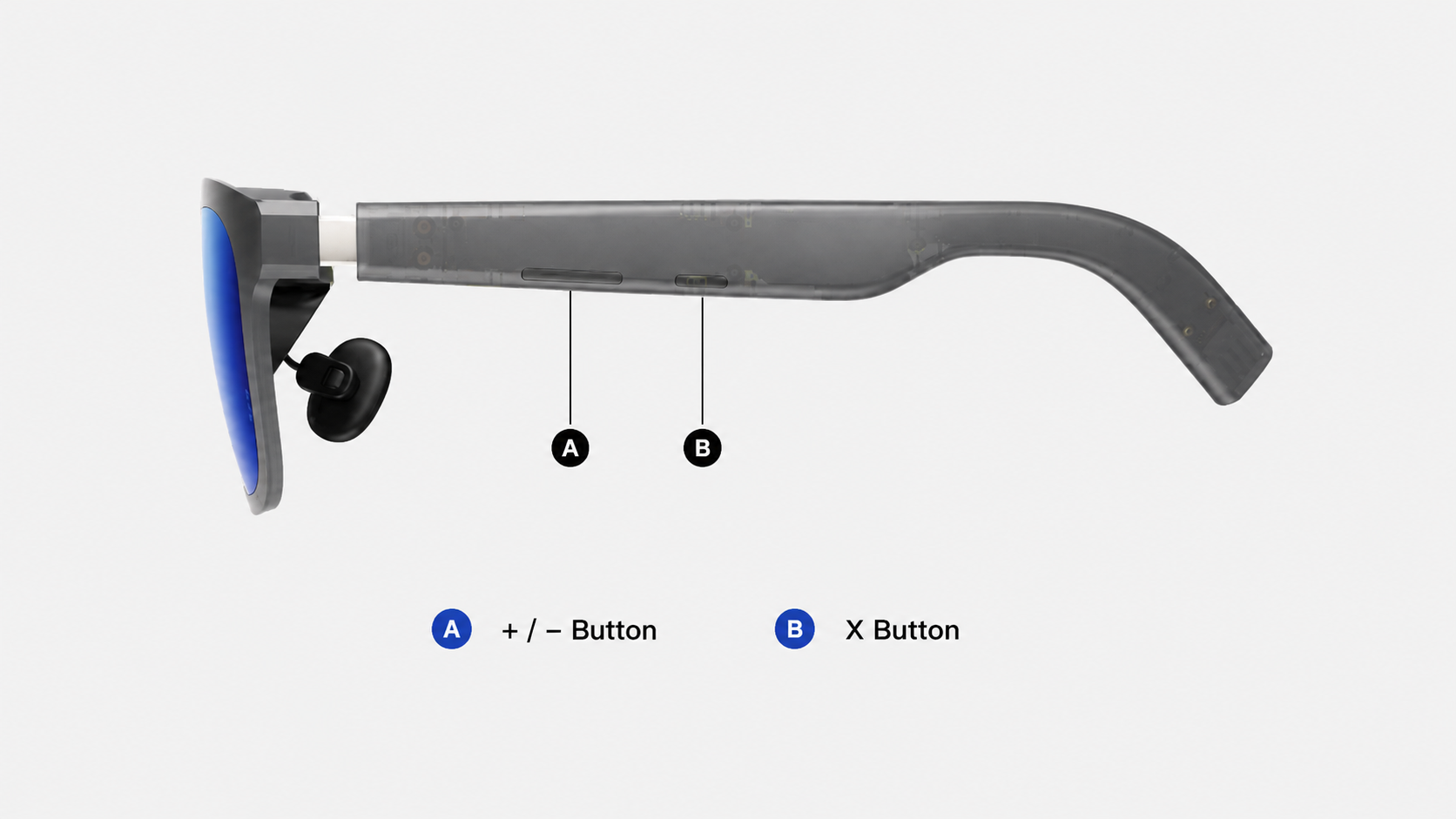
Menu Controls
Click/ Double-click the 「X」 button to open the function menu screen, on the function menu screen:
- Click the 「X」 button: Confirm
- Click the 「+/-」 button: Move up or down between options
- Double-click the 「X」 button: Go back to the previous menu
Display Language
After the first successful connection, the system will prompt you to select the menu display language.
You can change the language at any time from the 「Settings」 menu.
Firmware Update
We recommend keeping your glasses firmware up to date to get the latest features and optimizations. You can update the firmware through the OTA website: https://www.xreal.com/ota
SN Lookup
Using the XREAL Link App
You can download and install the 「XREAL Link」 App on an Android phone, then connect the glasses to view the device SN.
Download and Use
- Copy the following link and open it in your browser: https://s.xreal.cn/04dBqsua
- Download and install the 「XREAL Link」 App on your Android phone
- Open the 「XREAL Link」 App
- Connect the glasses to your phone and allow USB permission. You can then view the device SN.
Phone System Requirements
- Android 10 or later
Glasses Supported by the App
- xbx AR glasses
- XREAL One Series AR glasses
This tool is mainly used to look up the device SN for scenarios such as the national subsidy program in Mainland China. If the glasses cannot be recognized properly, unplug and reconnect them, then try again.
You can also use a computer, either Windows or macOS, to visit the following website and follow the on-screen instructions to look up the SN: https://www.xreal.com/ota